Date Picker Element
The Date Picker Element allows the user to specify a date from a calendar-based interface:
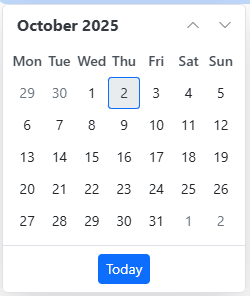
At runtime, to enter a date or change the existing date, the user can click or tap the Calender button at the right-hand end of the Element to display a calendar dialog allowing them to locate and select the desired date:

At the top of the calendar, you will see the current month and year (or the current Decade or current Year, depending on which of the Start View options have been selected - see below), with up and down arrows adjacent to it. Clicking on these arrows will move backwards or forwards one month at a time. Below these are displayed the days of the month allowing the user to click on the required date. To move more quickly, click on the month/year at the top of the dialog to display the months for the whole year instead of the days of the month. The current year will then be displayed at the top of the dialog, and the up and down arrows will move you backwards and forwards one year at a time. Click on the year at the top of the dialog to display 12 years in the dialog and use the arrows to move backwards and forwards 12 years at a time. At each level, making a selection will move the dialog back one level.
Alternatively, if allowed (see Allow Manual Entry property below), a user can type-in the date, in any of the following formats and Digitise Forms will convert it to the date format specified in the Element's Date Format property (see below):
|
Format |
Examples |
|---|---|
|
yyyy-mm-dd, yyyy/mm/dd |
months and days can have optional leading zero 2018-1-3, 1964/01/03 |
|
yy-mm-dd, yy/mm/dd |
months and days can have optional leading zero 18-1-3, 18/01/03 years will be prefixed with '20' so 88/01/03 represents 3rd January 2088 |
| dd-mm-yyyy, dd/mm/yyyy |
months and days can have optional leading zero 3-1-2018, 03/01/1964 |
| dd-mm-yy, dd/mm/yy |
months and days can have optional leading zero 3-1-18, 03/01/18 years will be prefixed with '20' so 03/01/88 represents 3rd January 2088 |
When inputting a date read-in from a Datasource, the date must be read from a DateTime field.
When outputting a date, the date will be output to the Datasource in the format specified in the Date Format property (see below).

Once you have placed a Date Picker Element on a page, you can edit the Element's properties to configure the Element for your requirements. Select the Element on the page to display its properties in the Properties Pane. The following properties are available:
Element Version
The Element's version number, which may be (and is often) different to the installed version of the Digitise Forms software. For example, the version of the Element might be 1.5, but the version of the in-use/installed Digitise Forms software might be 2.0 etc.
Label
Allows you to change the text displayed in the label for this Element. You can change the default label to provide a more meaningful description or option for your users.

The properties in this category allow you to change the appearance of the Element.
Visible and Disabled Properties
Placeholder
Allows you to specify text which will be displayed within the edit box, for example to indicate that the user should enter a date or to specify the date format to be used for manual entry.
Start View
Allows you to choose the format of the initial/opening display of the calendar. Options are: Month, Year, and Decade.
Full Screen Mode
Sets the Date Picker calendar to occupy the entire screen on mobile devices.
Show Today Button
Lets you show or hide the Today button on the Date Picker calendar.

The properties in this section allow you to specify validation criteria for the Element.

Value
Contains the current value of this Element.
Maximum Date
Specifies the latest date a user can enter. You can specify an input mapping to read the value in from a Datasource or manually enter a fixed (static) date. If you are specifying a static value, you can enter the required date using any of the formats listed in the table above. Leave blank if you don't want to provide an upper limit.
Minimum Date
Specifies the earliest date a user can enter. You can specify an input mapping to read the value in from a Datasource or manually enter a fixed (static) date. If you are specifying a static value, you can enter the required date using any of the formats listed in the table above. Leave blank if you don't want to provide a lower limit.
For more information about mapping properties to data items in a Datasource see Data Tab Properties.


Behaviour Category
Allow Past Dates
Allows the user to enter dates which are in the past. If you don't want to allow past dates to be entered, deselect this option.
Allow Future Dates
Allows the user to enter dates which are in the future. If you don't want to allow future dates to be entered, deselect this option.
Allow Mondays
Allows the user to enter a date that falls on a Monday. If you don't want to allow Mondays to be entered, deselect this option.
Allow Tuesdays
Allows the user to enter a date that falls on a Tuesday. If you don't want to allow Tuesdays to be entered, deselect this option.
Allow Wednesdays
Allows the user to enter a date that falls on a Wednesday. If you don't want to allow Wednesdays to be entered, deselect this option.
Allow Thursdays
Allows the user to enter a date that falls on a Thursday. If you don't want to allow Thursdays to be entered, deselect this option.
Allow Fridays
Allows the user to enter a date that falls on a Friday. If you don't want to allow Fridays to be entered, deselect this option.
Allow Saturdays
Allows the user to enter a date that falls on a Saturday. If you don't want to allow Saturdays to be entered, deselect this option.
Allow Sundays
Allows the user to enter a date that falls on a Sunday. If you don't want to allow Sundays to be entered, deselect this option.
Allow Manual Entry
Allows you to specify whether users can type-in a date as well as use the calender button to select a date. If selected, users can type into the edit box or use the calender button. If deselected, the edit box will become read-only and users must use the Calender button to select the required date.
Data Category
Date Format
Specifies the format in which you want the date to be displayed. The format specified here will also be used to output the contents of this field if an output mapping is specified.
Default Time
Allows you to specify a time to be appended to the date entered into this Element. You can choose between midnight, 00:00:00, Current Time (UTC) or Current Time (Local Client Time). Current Time (UTC) will append the current UTC time - UTC stands for Coordinated Universal Time or, what was previously called Greenwich Mean Time, and Current Time (Local Client Time) will append the actual local time from the user's machine at the time of the selection. Note that the time is not displayed on the form but is included with the date when the value is written out to a database.
Styles Category
Label, Datepicker, Button, and Error Message
Allow you to assign a style to the label, date display, calendar display button and invalid data error message text, respectively, e.g., to set the font type, size, and colour.