QR Code Element
The QR Code Element is used to add a QR Code to your form which can be scanned at form runtime:
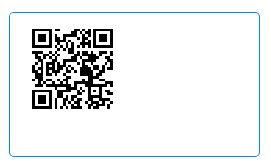
The above QR Code contains, 'Sample Data - QR Code'.

Once you have placed a QR Code Element on a page, you can edit the Element's properties to configure the Element for your requirements. Select the Element on the page to display its properties in the Properties Pane.
The following properties are available:
Element Version
The Element's version number, which may be (and is often) different to the installed version of the Digitise Forms software. For example, the version of the Element might be 1.5, but the version of the in-use/installed Digitise Forms software might be 2.0 etc.

Visible and Disabled Properties
Size
Allows you to specify the size of the QR Code in pixels. The minimum size permissible is 128 pixels, and the maximum size permissible is 512 pixels. Either use the up and down arrows at the right-hand side of the property to increase or decrease the size of the QR Code, or enter a value directly into the property box. If you change the size of the QR Code and enter an invalid value, this will be ignored and the last entered/selected value will be used instead.
- You may need to increase the size of your QR Code if you have a larger number of characters, and/or you have a larger Error Correction set (see below). We would advise thoroughly testing the readability of your QR Code before publishing your form by scanning it and making sure the information contained within it can be interpreted correctly by a barcode reader.
Layout
Allows you to specify the position of the QR Code within the Element. The options are Left, Right, and Center.

Value
Contains the current value of the QR Code.
Exported QR (PDF)
This property must be output-mapped to a Datasource in order for the QR code to be generated within a PDF. Contains a base64 string export of the QR Code image.

Advanced Category
Maximum Characters
Allows you to select the maximum number of characters that the QR Code will contain from a list of pre-defined values. The values contained within the list are 50, 100, 250, and 500.
Error Correction
Lets you determine how much of the QR Code can be damaged or covered whilst still being scannable. The options available are: Low, Medium, Quartile, and High. The lower the setting, the less damaged the QR Code can be. For digital output, damage to the QR Code isn't as much of an issue as it is for physical, printed output. Select Low for digital output, but keep in mind that for digital as well as physical/printed output, you may need to increase the size of your QR Code if it contains more information, as discussed above. For a QR Code that contains more data, a larger Code that has a better chance of being read correctly is preferable to a smaller QR Code that might not be interpreted as expected.
Styles Category
Background, Foreground, and Style
Allow you to assign styles to the various QR Code components.