Text Panel Element
The Text Panel element provides an edit box allowing a user to enter multiple lines of text.
At runtime a user can type into the edit box, view and edit the contents in the standard manner for their browser. If the user types beyond the end of the text box, the display will scroll upwards and a scroll bar will be displayed.
The user can also change the height of the panel by clicking and dragging the grab handle in the bottom left-hand corner of the panel:  .
.

Once you have placed a Text Panel Element on a page, you can edit the Element's properties to configure the Element for your requirements. Select the Element on the page to display its properties in the Properties Pane.
The following properties are available:
Element Version
The Element's version number, which may be (and is often) different to the installed version of the Digitise Forms software. For example, the version of the Element might be 1.5, but the version of the in-use/installed Digitise Forms software might be 2.0 etc.
Label
Allows you to specify the text that will be displayed above the edit box. You can change the default label to provide a more meaningful prompt for your users.

Visible and Disabled Properties
Placeholder
Allows you to specify placeholder text to be displayed in the edit box part of the Element when the page loads.
Rows
Specifies the height of the Element in rows and thus the number of lines of text which can be entered into the text box without scrolling. If the user types beyond this number of lines, the text will scroll and scroll bars will be displayed.

The properties in this section allow you to specify validation criteria for the Element.

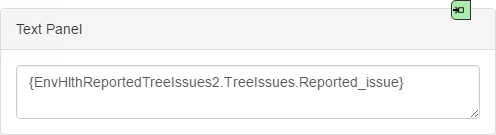
If you specify an input mapping, the mapping will be displayed, in the Form Design workspace, in the format {<datasource>.<dataset>.<dataitem>} in place of any specified Placeholder text. For example:
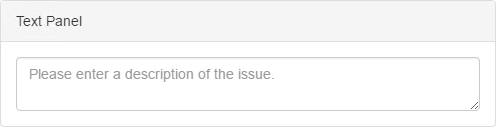
Changes to the Placeholder property won't be reflected in the Element, unless you remove the input mapping, in which case any specified placeholder text will be displayed again:
You may need to reload the form to display the input mapping. The mapping is only shown in Form Studio and isn't displayed on the published form.

Advanced Category
Autocomplete
Allows you to switch the autocomplete attribute ON and OFF. By default, autocomplete is ON (as indicated by the property containing the word on). When autocomplete is ON, the browser will display a list of suggested values that match or contain (in the same order) the characters entered, based on the accompanying Label. For example, where the Label is set to First Name, a list of suggested forenames - determined by the browser - will be displayed.
To make the suggested values more closely match the type of data expected in the field, replace on with a token such as name, email, country-name, or postal-code etc., or an ordered list of space-separated tokens. For example, where the token postal-code is used and the user types Pe, a list of postcodes that begin with Pe will be displayed (e.g., PE1 XXX, PE11 XXX, PE12 XXX, etc.). When a list of suggested values has been displayed, an item from within the list can be selected by tapping or clicking it.
To turn autocomplete OFF, replace the word on with off. If the autocomplete property contains anything other than on, off, or one or more tokens, it will be set to ON by default. For more information on using autocomplete and autocomplete tokens, click here.
Styles Category
Label, Text Box and Error Message
Allow you to assign a style to the Label, the edit box and the invalid data error message text, respectively, e.g. to set the font type, size and colour.