Accessing the NDL Training Lab
This topic explains the process for accessing the NDL Training Lab, where you can undertake independent, unsupervised product training at your own pace, using your dedicated NDL Training Lab Virtual Machine (‘VM’).
The Training Lab allows you to familiarise yourself with Digitise Forms in a pre-configured training environment and can be accessed through a web browser. Everything you need to complete the Forms training exercises will be provided within the Lab environment, and your Lab Virtual Machine will have the latest version of the Evolve Platform components pre-installed and pre-configured, along with a range of sample data and sample applications.
- You don’t have to use the NDL Training Lab to complete the Digitise Forms training exercises. If you’d prefer, you can work through the exercises using your own machine, but the Lab has been created to provide you with a safe and secure alternative, should you wish to keep your training activities away from live processes or your live Evolve Platform components etc.
Using the Training VM, you can follow the documented training steps and exercises contained within the Training section of this Online Help.
Your Virtual Machine will be available between the designated start and end dates, during the hours of 09:00 and 17:00, Monday to Friday. The Virtual Machine is accessible only to you and the NDL Support Team, and we ask that you don’t share access to it with any other users.
At the end of the designated access period (which usually lasts for two weeks), the Virtual Machine will be automatically deleted and all data within it will be destroyed. You will receive an email warning you that access to the Virtual Machine is about to expire, and the expiration date and time will be confirmed within the email.
Before you try to open the NDL Training Lab, you must make sure that you have received a Welcome to the NDL Training Labs email:
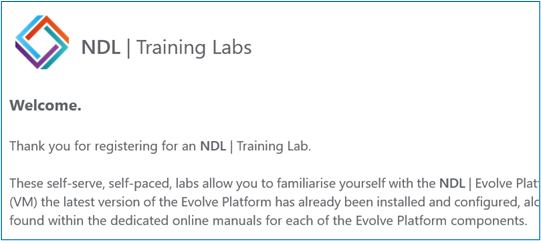
The email contains background information about the Training Lab (such as the dates during which the NDL Training Lab will be available to you), as well as your assigned username and password. You will be unable to use your Training VM without your username and password, and you will be unable to access the Training Lab unless you have received the Welcome to the NDL Training Labs email.
If you’re ready to begin your Digitise Forms training and you haven’t received the email, please contact the NDL Helpdesk by:
- Emailing support@NDL.co.uk (include training labs in your subject).
- Phoning 01937 543510.
- Raising a Support Ticket via the NDL website (https://www.ndl.co.uk).
Alternatively, please contact your NDL Digital Transformation Consultant.
To access the NDL Training Lab, follow the steps discussed in the following drop-down:
 Accessing the NDL Training Lab
- Open a web browser and navigate to: https://labs.ndl.co.uk.
- When you have entered the above URL, the following login dialog box will be displayed:
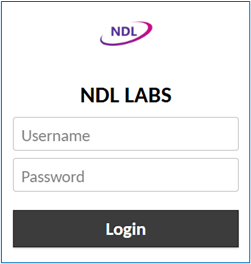
- Within the dialog box, enter the username and password which will have been supplied to you in your Welcome to the NDL Training Labs email, then click Login.
- When you have successfully logged in, a message will be displayed advising that you are now connected to ‘Guacamole’ (the NDL Training Lab environment):

- After a few seconds, the message will disappear, and you be presented with your Training Lab VM desktop.
- The desktop will contain several Evolve component folders, as illustrated below:
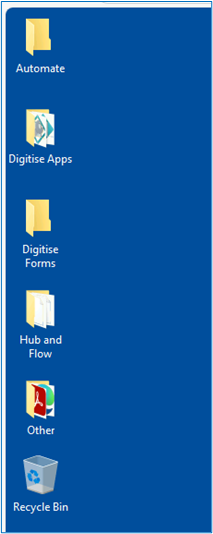
- Double-click the folder for the Evolve component you wish to use.
- When the folder opens, it will contain one or more shortcuts and/or executables.
- In the following example, the Hub and Flow folder shown above has been opened, and the folder contains the shortcuts for Hub Manager and Hub Studio, along with the executable for Flow Studio:
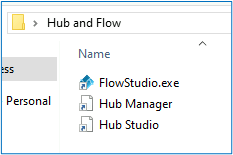
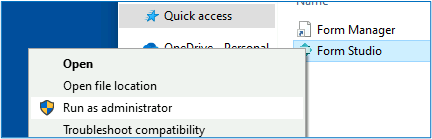
- Double-click the shortcut or executable to open the target Evolve component. Note that for Form Studio in particular, you will need to right-click the executable, and from the context menu, select Run as administrator:
- With your target Evolve component now opened and ready to use, follow the steps detailed within the Introduction to NDL Digitise Forms Workshop topic and work your way through the training exercises. Remember to save your work as you go along.
- When you have finished with the Evolve component, close it using the cross in the component’s upper, right-hand corner:

- With the Evolve component closed, close the folder that contains the component shortcuts/executables.
- To exit the NDL Training Lab, simply close the opened browser.
- You can close and then re-open the training VM as many times as you need to during your designated access period but do bear in mind that you must try to complete the component training within the allotted two-week timeframe. Most of the NDL Online Training can be completed within two days, so you should have more than enough time in which to achieve your training goals if, for example, you need to pause your training due to work commitments and then return to it later.
If you experience problems with any aspect of the NDL Training Lab or with any aspect of the Online Training materials, please contact the NDL Helpdesk.
As discussed within the Training topic, we aim to be as responsive as we possibly can and are always looking for ways in which our training offering can be improved. If you wish to provide feedback of any kind, contact the NDL Helpdesk or your NDL Digital Transformation Consultant.