Introduction to NDL Digitise Forms Workshop
WORKSHOP OVERVIEW
This Introduction to NDL Digitise Forms Workshop has been created with the aim of:
- Introducing you to Digitise Forms' key features and components.
- Getting you up-to-speed with Digitise Forms basics.
- Taking you through a series of Digitise Forms training exercises.
- Guiding you through the steps involved in developing a Child Flu Vaccination Form.
- Allowing you to complete both the training exercises and the Child Flu Vaccination Form at your own pace.
- Providing resources that will help to facilitate and enable your own independent Digitise Forms product training.
- Introducing you to Form Manager.
- The NDL Digitise Forms Training Workshops can be completed either within your own environment, or within an NDL-provided Virtual Environment. For information on how to access and use the NDL Virtual Environment (i.e., the NDL Training Lab), see the dedicated Accessing the NDL Training Lab topic.
There are 16 training exercises in total, which you can access by clicking on the Training Exercises drop-down located towards the bottom of the page. The Training Exercises drop-down contains 16 further drop-downs: one for each of the training exercises. Within each exercise drop-down, you'll find an overview of the exercise, plus easy-to-follow exercise steps. The steps contain detailed explanations of:
- How to go about correctly configuring Project components.
- How to access the relevant parts of Form Studio.
- How to select and apply options that control your Form's behaviour.
The exercise steps also include context-specific screen shots aimed at alleviating confusion and eliminating grey areas - helping you to correctly develop your Project, regardless of which stage you're at in the Form set up process. You can also access a PDF which provides an overview of the training exercises by clicking here.
Links to topics that contain more detailed information about Digitise Forms' components and features have been included within the exercises, and we advise reading through the linked content in order to further extend your knowledge.
- If you require assistance with any aspect of this Introduction to NDL Digitise Forms Workshop, please email support@ndl.co.uk, starting the subject of your email with Introduction to NDL Digitise Forms Workshop to ensure it is picked up correctly. If you need further help, please contact your Digital Transformation Consultant.
Before you begin the exercises, you should also read through the information contained within the following drop-down, which explains how to access training resources that have been made available to support your learning, and how to configure your environment. The resources include a set of images, along with a Script for creating a Database table.
 Configure your environment/access training resources
- If you are following the training exercises in an NDL-provided Virtual Environment, you can ignore the information contained within this drop-down and continue on to the exercise summaries.
In order to run this Digitise Forms Foundation Training within your own environment, you will need to access a working installation of Digitise Forms, Microsoft Word, and SQL Server. You also need to make sure that the following are all in place:
- Permission and access to run Form Studio.
- Permission and access to Publish Digitise Forms to an instance of IIS and SQL Server.
- An instance of Microsoft SQL Server Management Studio (or suitable alternative).
- A user account with permission to create databases on Publish, and read/write data to/from these.
If you experience problems with any of the above, please contact your Digital Transformation Consultant.
Download the Training Resources
As you work your way through the exercises, you will need access to a set of pre-existing resources which need to be configured within your own environment. These should be downloaded using the link provided below, then unzipped to a location on your machine. We recommend storing these in C:\Training Material\Digitise Forms\Resources.
- If you copy the resources to an alternative location, you will need to use this location instead of the one stipulated in the training materials.
Configure your SQL database
To set up the training database used throughout the training exercises, on your SQL Server, you must make sure that you:
- Create a new database named Schools.
- Use the Schools.sql database script provided to create a SchoolOptions table within the database and pre-populate it with two test records.
- Throughout the training course, you will need to substitute your own SQL credentials for the sa user account specified in the training materials.
See Exercise 7 for information on how to perform the above database- and table-creation tasks.
The Summary drop-down at the bottom of the page contains:
- A reminder of Digitise Forms' key components.
- An overview of what you will have learnt by the time you have completed the training exercises and have created the Child Flu Vaccination Form.
INTENDED AUDIENCE
This training Workshop is aimed at anyone seeking to create and deploy eForms using Digitise Forms, but from a beginner's perspective. If you have prior knowledge of Digitise Forms, then you will probably be familiar with most of the information contained within this topic, in which case you will more than likely want to skip it in favour of the other, more component-specific training topics. If, on the other hand, you are a new or novice Digitise Forms user, then we would advise completing the exercises and creating the Child Flu Vaccination Form before moving on to any of the other training topics.
APPROXIMATE COMPLETION TIME
It should take you approximately two days to complete the training exercises, but it may take you longer if you decide to re-visit some or all of the training materials, or if you read through all of the linked topics (which we recommend). How motivated you are when it comes to independent learning could also have an impact on how long it takes you to finish the exercises. Before you start Exercise 9, you should read through the accompanying Introduction to Exercises 9 to 15, which includes instructions for making changes to the Child Flu Vaccination Form. The instructions typify the kind of development request that you are likely to receive when deploying a live eForm.
- As you work your way through the exercises and develop your Child Flu Vaccination Form, remember to save your changes. You will be prompted to do this at various points throughout the course of your training.
Training Exercises
Exercise 1 - Create the Contact Details Page
Exercise Overview:
In this exercise, you will create the Form's Contact Details Page:
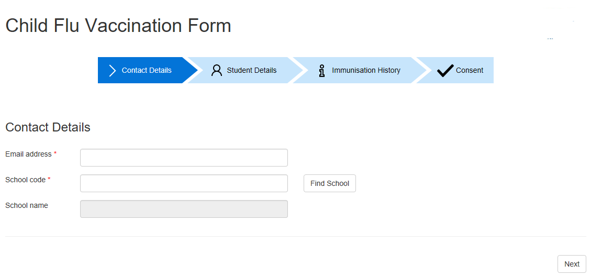
The main objectives of this exercise are:
- To add a Text Box to the Contact Details Page so that we can collect information.
- Add resources (e.g., an image) to your Form.
- Add a Navigation Button Element.
- Add some custom CSS in order to style the Form.
You will begin by opening Form Studio and creating a new Form Project. You will then start building up the Form by accessing and configuring some of its core components and working with the different areas of Form Studio, including:
You will give the Form a suitable name, and you will also add a number of Elements to the Form, including:
- A Title Element.
- An Image Element.
- A Label Element.
- A Text Box Element.
- A Separator Element.
- A Next Button Element.
You will also apply some custom styling to an Element and add a Required Rule, before naming and saving the Project.
Exercise Steps
- Open Form Studio. If you are using the NDL-provided training environment, locate the Digitise Forms folder on the desktop and open it. If the folder doesn't exist, search for Form Studio. Do the same if you are using your own machine (with NDL Digitise Forms installed), or right-click on Form Studio. From the options presented, select Run as administrator:
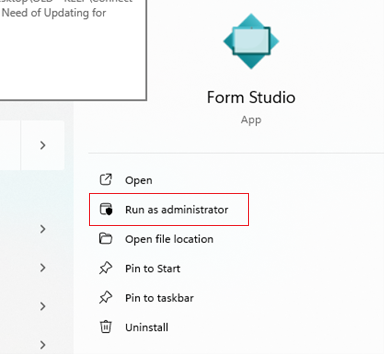
This will ensure that the application starts with the required permissions that will enable your Form to be Published.
- When Form Studio opens, click New, followed by Blank template to start a new Project.
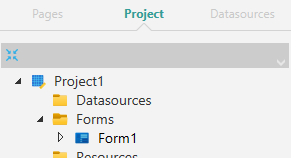
- When the new Project opens, within the left-hand Project Explorer Pane, click the Project tab. Expand the Forms tree item, then click Form1 to select it:
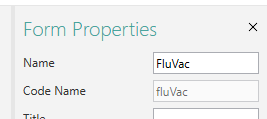
- With Form1 selected, within the right-hand Properties Pane, rename the Form by changing the Name property to FluVac:
- It is good practice to not only rename your Form (as this will be used in the Form's output URL) but also to name whatever Elements you add to it. Digitise Forms will generate a Database Table and will store the Form data in columns based on the names of your Elements, so if you don't give Elements and other items suitable names, default names will be applied, e.g., ndltextbox1. Default names are not always self-explanatory, so choosing an appropriate name - particularly for First Names and Surnames - will be of benefit when it comes de-bugging and identifying Form items more readily.
- Within the left-hand Project Explorer Pane, click the Pages tab, then click on the thumbnail for the only page present for the FluVac Form to select it:
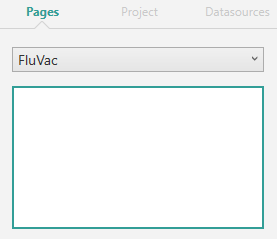
- With the page's thumbnail selected and with the page displayed within the central Form Studio Workspace, click into the Elements Gallery within the Form Studio Ribbon. Locate the Title Element, then drag and drop it into the page's Header section:
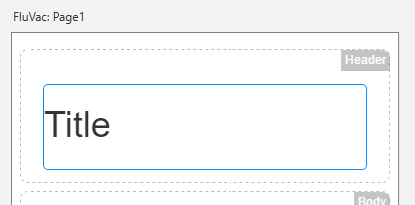
- When dragging and dropping Elements onto your Form's pages for the first time - particularly when placing them side-by-side - you may have trouble positioning those Elements in the desired location. This will more than likely be because you're unfamiliar with Form Studio, rather than there being anything inherently wrong with your installed version of the software.
When you place an Element on a page, it spans the full width of that page until another Element is placed next to it. When you come to place an Element above, beneath, or alongside another one, the one that's already on the page will display a thick, blue border on the edge next to which you're trying to place the new Element. For example, if you want to place an Element to the right of another one, simply drag the new Element to the right-hand side of the existing Element, and the thick, blue border will then appear, as illustrated below:
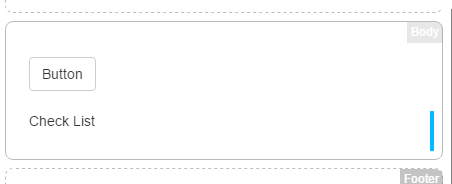
In the example shown above, a Check List Element was already in place, and another Element was being placed next to it, at its right-hand side (as indicated by the appearance of the thick, blue border at the Check List's right-hand edge).
- When dragging and dropping Elements onto your Form's pages for the first time - particularly when placing them side-by-side - you may have trouble positioning those Elements in the desired location. This will more than likely be because you're unfamiliar with Form Studio, rather than there being anything inherently wrong with your installed version of the software.
- Change the Text property for the Title Element that you've just added in either of the following two ways: With the Title Element selected, within the Properties Pane, locate the Text property on the Appearance tab (
 ), then edit the title so that it reads Child Flu Vaccination:
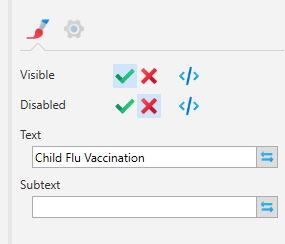
Alternatively, click into the Title Element and perform an in-line edit. Remove the default text and replace it with Child Flu Vaccination.
- Next, add an image to the page. Open the Elements Gallery within the Ribbon and locate the Image Element. Drag the Element onto the page and drop it into the Header section, just to the right of the Title Element:
With the Image Element selected, click the Data tab (
 ) within the Properties Pane. Click the Browse button next to the Static Source property, then navigate to the location where the NHS logo image has been saved. If you are using the NDL training environment, the NHS logo image file (NHSlogo.jpg) should be located in: C:\Training Material\Digitise Forms\Resources (or use the location where your downloaded resources have been saved). Select this image. Note that when you add the image to the page's Header section, you may need to adjust the width of the Image Element by clicking on the grey bar at its left-hand side (when the Element is selected), then moving it left or right.
With the Image Element still selected, within the Properties Pane, on the Appearance tab, set the Height to 75:
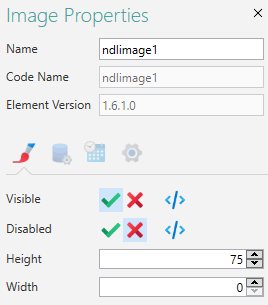
- Next, go to the Styles Gallery within the Ribbon and add a new style:
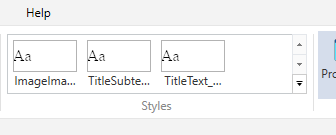
Right-click anywhere within the Styles Gallery, and from the context menu, select New Style. A new style will be added to the Gallery and a default name will be applied to that style (e.g., Style, Style2, etc.). Right-click the new style and from the context menu, select Rename. Rename the style to HeadingLogo, then click off the style to retain the new name. Right-click the HeadingLogo style, then select Edit CSS. When the CSS Editing Pane opens, enter the code shown below (adding the code between the opening and closing curly braces, as illustrated):
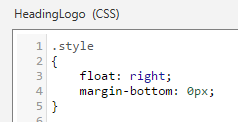
This will 'float' (or re-position) the image at the right-hand side of the page and remove the bottom margin. Once the code has been entered, click off the CSS Editing Pane and onto the page's thumbnail within the Project Explorer Pane (on the Pages tab). Click the Image Element to select it, then within the Properties Pane, click the Advanced tab (
 ). Beneath the Styles heading, from within the Style drop-down, select the new HeadingLogo style, and deselect any others: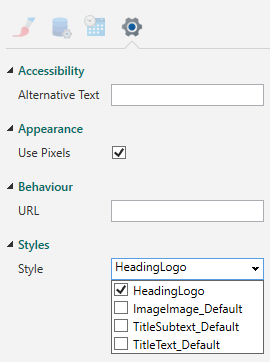
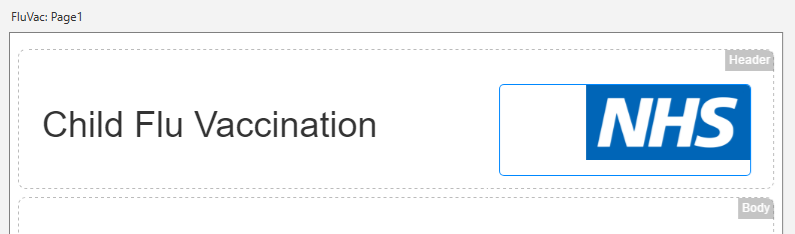
The image will then be floated right, as shown below:
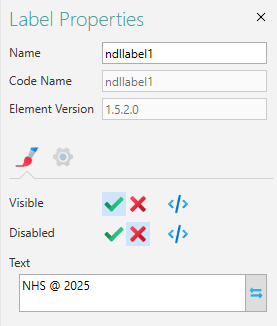
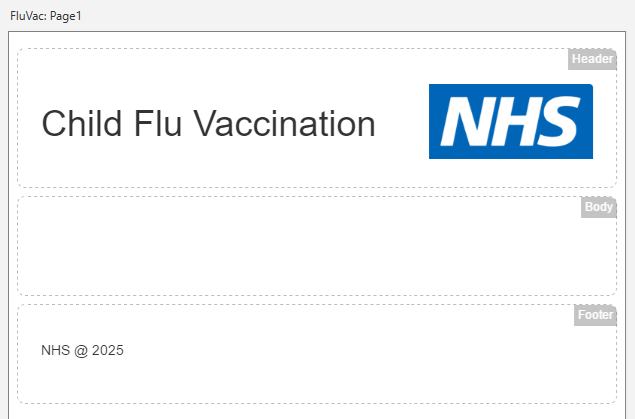
- Next, add a Label Element to the page by dragging and dropping it from the Elements Gallery into the page's Footer section. With the Element selected, within the Properties Pane, on the Appearance tab, edit the Text property so that it reads NHS @ 2025:
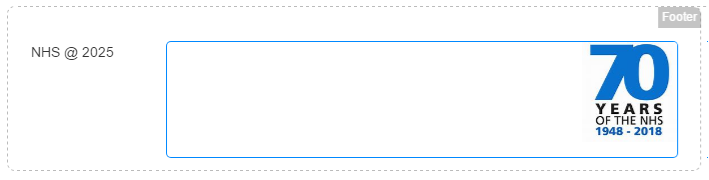
- Next, from within the Elements Gallery, drag an Image Element and drop into the Footer section, just to the right of the Label Element that you added in the previous step. With the Image Element selected, within the Properties Pane, click the Data tab. For the Static Text property, navigate to the training resources location discussed above, where you will find the 70years.jpg image (or use the location where your downloaded resources have been saved). Select this image. On the Appearance tab, set the Height to 100.
- From within the Form Studio Ribbon, add another new style. Right-click anywhere within the Styles Gallery and from the context menu, select New Style. Right-click the new style, and from the context menu, select Rename. Rename the style to RightJustified. Right-click the RightJustified style and select Edit CSS. Add the following 'justify right' and 'no bottom margin' code to the CSS, placing it between the curly braces (as you did in Step 8):
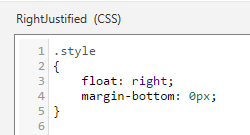
Click off the CSS Editing Pane and back on the page's thumbnail within the Project Explorer Pane. Click the Image Element to select it, then within the Properties Pane, click the Advanced tab. For the Styles property, click the drop-down and select the RightJustified style (deselecting any others). Note that you could have used the style that you configured in Step 8 (which is the same as the one you've just created), but it's good practice to create a number of different styles (naming them appropriately) where these will be used on different Elements within your Form. The newly added Image Element (containing the 70years.jpg image) should then look like this:
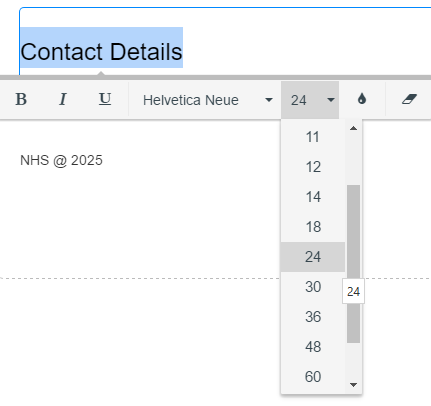
- Next, drag a Title Element from the Elements Gallery and drop it into the Body section of the page. With the Title Element selected, within the Properties Pane, change the Text property so that it reads Contact Details. Alternatively, click into the Title Element and perform an in-line edit, as you did n Step 7. When the text has been changed, highlight it, then from within the Font section of the Ribbon, set the font size to 24pts. Alternatively, with the text highlighted, from within the context menu that appears, change the point size to 24pts, as illustrated below:
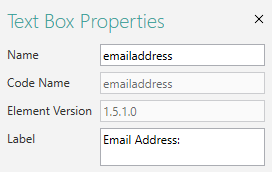
- Drag a Text Box Element from the Elements Gallery and drop it into the Body section of the page so that it sits just beneath the Title Element added in the previous step. With the Text Box Element selected, within the Properties Pane, change the Name property to something more meaningful - e.g., emailaddress. Also, change the Label property to Email Address: (with the colon included), as illustrated below. Do this for all Elements that receive user input (such as name components: firstname for the Name and First Name for the Label for the First Name field; surname for the Name and Surname for the Title for the Surname field, etc.), as discussed above.
With the Text Box Element still selected, within the Properties Pane, click the Rules Tab (
 ). Add a Rule by clicking the box beneath the Rules for the Value property wording within the Rules tab. When the Rules Builder opens, click Add New Rule, then select Required from the displayed list, as illustrated below. The Required Rule prevents the Form from being submitted if the Text Box isn't populated.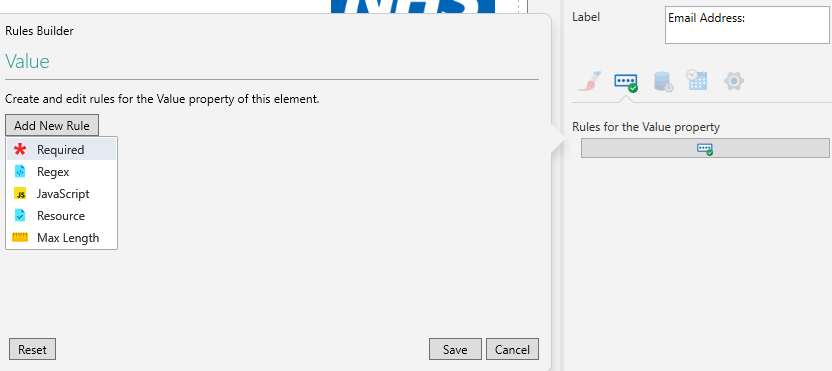
You can, if you wish, add some failure text within the Failure property, which will appear when the Rule is invoked and if the user tries to move to the next page or submit the Form with the field empty (e.g., Enter a valid email address):
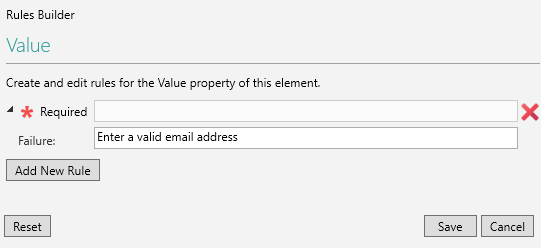
Click Save to retain the Rule.
- Add a second Rule following the steps outlined above, but rather than clicking Required, click Resource instead. From within the drop-down, select Email. This will validate the entered text, checking for required characters such as the @ symbol etc. which must be present within the email address:
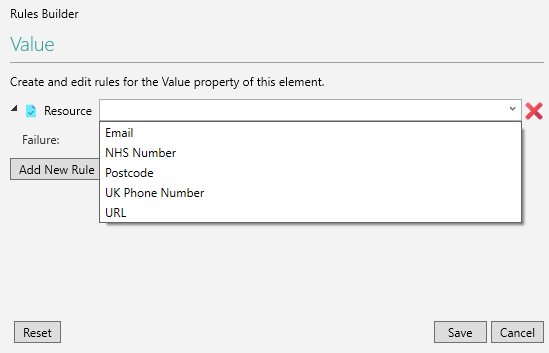
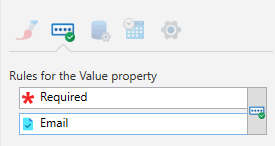
Again, click Save to retain your changes. The email address Text Box Element will then have two Rules applied to it, as shown below:
- Drag and drop another Text Box Element and position it beneath the email Text Box Element you've just added, within the page's Body section. With the second Text Box Element selected, within the Properties Pane, change the Name property to SchoolCode, and the Label property to School Code: (with the colon included).
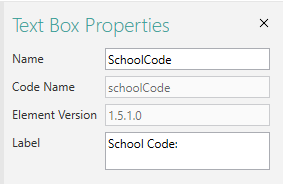
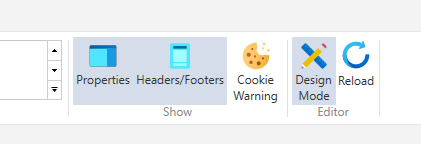
With the Text Box added, follow the steps discussed above for adding a Required Rule, again meaning that this field must be populated in order for the Form to be submitted. Note that any required fields will have a red asterisk displayed next to them, and if a Required Rule has been applied but the asterisk isn't visible, click the Reload button at the right-hand side of the Form Studio Ribbon, shown below. The asterisk will then appear.
- From within the Elements Gallery, drag and drop a Separator Element, and place it into the Body section so that it sits beneath the School Code field added in the previous step.
- From within the Elements Gallery, drag and drop a Next Navigation Button Element button, so that it sits just beneath the Separator added in the previous step, again, within the Body section. With the Next Navigation Button Element selected, within the Properties Pane, click the Advanced tab. For the button's Styles, Leave the Label Style as the default, but for the Button Style, from within the property's drop-down, select RightJustified. Deselect any other styles within the drop-down.
- Next, go over to the left-hand Project Explorer Pane. With the Pages tab selected, right-click anywhere within the tab, and from the context menu, select New Page. A new page will be added beneath the current page which will contain the same Header and Footer information/items as the first page, but nothing else. This new page will be used to hold Student Details information.
- Click the new page thumbnail to select it, to check that you can only see the configured page Header and Footer information, and to prepare for adding the required Student Details Elements.
- Finally, click File in the upper, left-hand corner of the Form Studio main window. Choose Save As, then save the Project using the name ChildFluVaccinationZZ, replacing ZZ with your own initials. When you've performed a Save As and you're returned to the Form Studio main window, click the Save button just above the File option, in the upper, left-hand corner. If you want to see how the Form will be displayed at runtime, click the Design Mode button within the Form Studio Ribbon to switch Design Mode OFF. Click the button again to turn Design Mode back ON.
Exercise 2 - Create the Student Details Page
In this exercise, you will create the Form's Student Details Page:
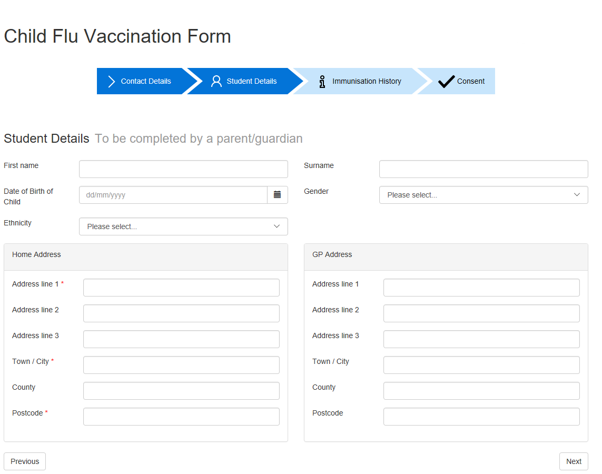
The main objectives of this exercise are:
- To create a Datasource.
- To map a Datasource to an Element.
- To create a Template.
In addition to the Elements that were added in Exercise 1, you will also add:
- A Date Picker Element.
- A Drop List Element.
- A Spacer Element.
- An Address Finder Element.
- A Previous Button Element.
Exercise Steps
- Within the Project Explorer Pane, make sure the second page thumbnail is selected and that the page visible in the Form Studio Workspace has only Header and Footer Elements added. Drag a Title Element from within the Elements Gallery, and drop it into the page's Body section. Edit the Text property so that it reads Student Details. Do this either on the Appearance tab within the Properties Pane, or by clicking into the Title Element and performing an in-line edit to replace the default text with the required Student Details wording. When the wording has been changed, highlight the text and change the font size to 24pts, as you did in Exercise 1, Step 13. With the Title Element still selected, on the Appearance tab within the Properties Pane, edit the Subtext property so that it reads (To be completed by a Parent or Guardian).
- Drag a Text Box Element from the Elements Gallery, and place it underneath the Title Element. With the Text Box Element selected, within the Properties Pane, edit the Label property so that it reads First Name: (with the colon included). Change the Name property to firstname. Click the Rules tab, then add a Required Rule as you did in Exercise 1, Step 14.
- Add another Text Box Element, dragging it from the Elements Gallery, and placing it just to the right of the First Name field. With the Text Box Element selected, within the Properties Pane, edit its Label property so that it reads Surname: (with the colon included). Change the Name property to surname. Again, add a Required Rule.
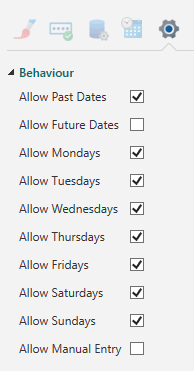
- Next, drag a Date Picker Element from the Elements Gallery and drop it beneath the First Name and Surname fields. With the Date Picker Element selected, within the Properties Pane, set the Label property to Child's DOB: (with the colon included). Add a Required Rule to the DOB, as you've done previously. On the Appearance tab, set the Placeholder text to dd/mm/yyyy. On the Advanced tab, under Behaviour, uncheck Allow Future Dates and Allow Manual Entry. Leave all other properties under the Behaviour heading checked:
- Next, drag a Drop List Element from the Elements Gallery and place it to the right of the Date Picker Element. With the Drop List Element selected, within the Properties Pane, set the Label property to Gender: (with the colon included). Again, add a Required Rule, as you've done previously. On the Data tab, click the List Items button:
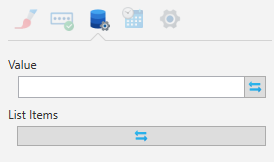
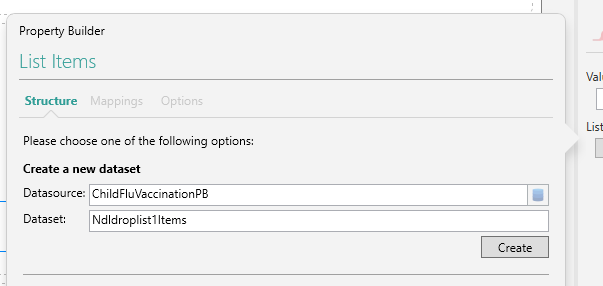
When the List Items button has been pressed and the Property Builder popout appears, click the Create button within the Create a new dataset section:
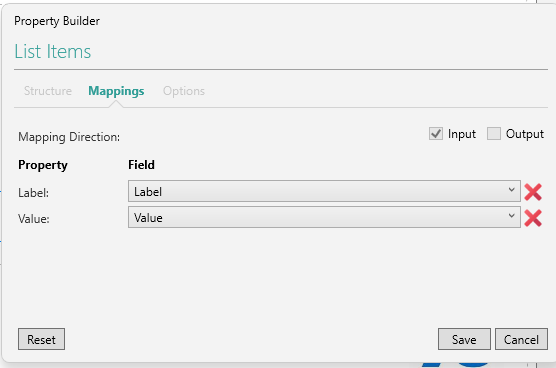
On the Mappings tab, click the Save button:
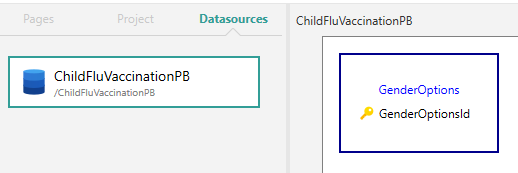
Next, go the Project Explorer Pane and click the Datasources tab. A Datasource (i.e., a database) for the current Project will have been created, bearing the same name as your Project (i.e., ChildFluVaccinationZZ, where ZZ is your own initials - shown as PB in the examples below). Click the Datasource to reveal a thumbnail for the Dataset (which will be named Ndldroplist1Items) in the adjacent Workspace window. Note that Datasets will be the tables within your database. Click into the Dataset name (the blue wording at the top of the thumbnail), and change it to GenderOptions:
Double-click the GenderOptions Dataset thumbnail to open it. On the Mappings tab, uncheck the Image row to remove it/make sure no Image row is visible. Click the Data tab. Within the Data tab, add values that will populate the Drop List Element at Form runtime, and which will be stored within the database. The Label column will contain the value as it appears in the Drop List Element, while the Value column will be used to store the selected value in the database when the Form is submitted. To add the required information, click into the Label column in the first row, enter Male, then tab across into the Value column and enter Male. Tab to drop down to the second row, then repeat the process for adding additional gender information - as much as you wish:
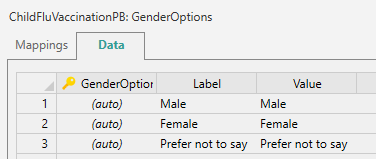
- When you create Datasets, in the first column, check that an asterisk appears beneath the last row of data that you added. This indicates that the data entered has been saved:
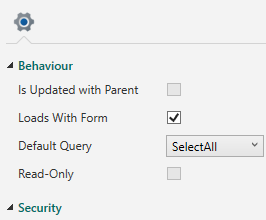
Within the Properties Pane, under Behaviour, check (tick) the Loads With Form property, which will ensure that the values are displayed when the Form loads:
- When you create Datasets, in the first column, check that an asterisk appears beneath the last row of data that you added. This indicates that the data entered has been saved:
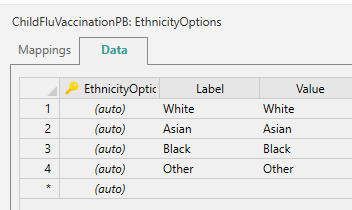
- Go back to the left-hand Project Explorer Pane and click the Pages tab. Click the 2nd page - Student Details - thumbnail to select the page. Drag another Drop List Element from the Elements Gallery and place it beneath the Date Picker Element, labelled as Child's DOB:. With the Drop List Element selected, in the Properties Pane, change the Label property to Ethnicity: (including the colon). Click the Rules tab, then set a Required Rule, as you've done previously. Using the information provided in Step 5 of this exercise, create a Dataset for the Ethnicity Drop List. When the Dataset for the Ethnicity Options has been created, click into the Dataset name and change it to EthnicityOptions. Add values for the Label and Value columns such as British, Irish, and Not Known etc.:
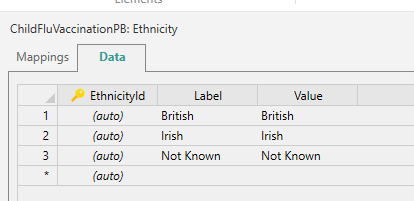
Remember to check (tick) the Loads With Form property in the Properties Pane, and make sure no Image row is visible on the Mappings tab. Go back to the Project Explorer Pane, click the Pages tab, then click the Page 2 (Student Details) thumbnail to select the page once again.
- Drag a Spacer Element from the Elements Gallery, and drop it onto the Student Details page to the right of the Ethnicity Drop List. This will fill the empty gap and align the fields.
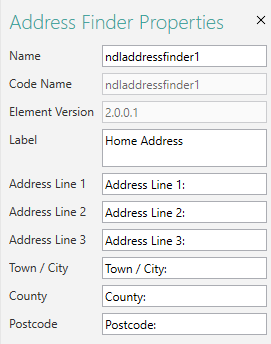
- Next, drag 2 x Address Finder Elements from the Elements Gallery and place them side-by-side beneath the Ethnicity Drop List. Click each Address Finder Element in turn and edit the Label properties within the Properties Pane. Label the first Address Finder as Home Address, and the second as GP Address. For the Home Address Address Finder, with the Element selected, within the Properties Pane, click the Rules tab. Set both the Address Line 1 and Postcode fields as Required. Add colons to the ends of the address line fields within the Properties Pane to maintain consistency with the other fields on your Form, as illustrated below (apart from the Label property, in this instance):
- From within the Elements Gallery (under the Navigation Buttons heading), drag and drop a Previous Button Element and a Next Button Element, and place them side-by-side under the Address Finder Elements you added in the previous step. Place the Previous Button Element to the left of the page, and the Next Button Element to the right. Select the Next Button Element and within the Properties Pane, click the Advanced tab. Under Styles, for the Button Style property, from the drop-down, select RightJustified - the style you created earlier. Deselect any other styles within the drop-down.
- At the top of the Form Studio window, click the Layout tab (just above the Ribbon), to display the Grouping options (which will be greyed-out, initially):
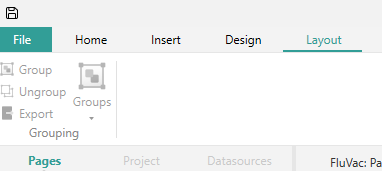
Hold down the CTRL key, then click both the Next Button and Previous Button Elements to select them. Both Elements should now have a blue selection border around them, as illustrated below:

With the Elements selected, click Group on the Layout tab (which will become available when the Buttons have been selected), then click Export. Click the Design tab just to the left of the Layout tab, where you should see Template1 displayed in the Templates area:
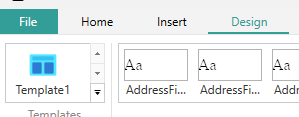
The Template - comprised of the two Next Button and Previous Button Elements - will be used later to avoid having to place separate Buttons on the Form's pages. Rename the Template to something more meaningful. To do this, right-click on the Template name, and from the context menu, select Rename. Change the Template name to NavButtons.
- In the top, left-hand corner of the Form Studio window, click File, followed by Save, to retain your changes (or use the Save button).
Exercise 3 - Create the Immunisation History Page
In this exercise, you will create the Form's Immunisation History Page:
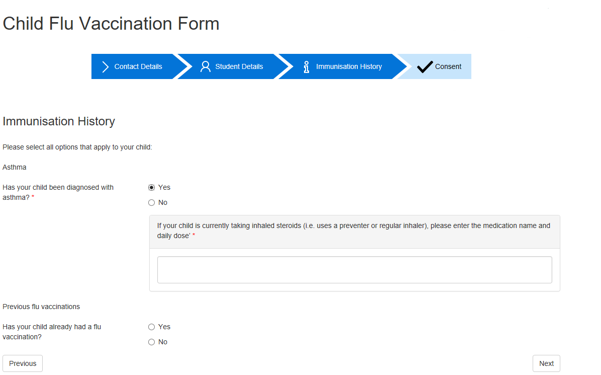
The main objectives of this exercise are:
- To hide an Element.
- To write a JavaScript Expression.
- To use a Template.
In addition to the Elements that were added in previous exercises, you will also add:
- A Radio List Element.
- A Text Panel Element.
Exercise Steps
- As you've done previously, add a new page to the Form. In the left-hand Project Explorer Pane, click the Pages tab, then right-click anywhere within the tab and from the context menu, select New Page. Click the new page thumbnail to select the page.
- Drag a Title Element from the Elements Gallery, and drop it into the new page's Body section. Within the Properties Pane, on the Appearance tab, set the Text property to Immunisation History. Highlight the text and then change the font size to 24pts, as you've done previously.
- Drag a Label Element from the Elements Gallery and place it beneath the Title Element. With the Label Element selected, within the Properties Pane, set the Text property to Please select all options that apply to your child.
- Drag and drop another Label Element into the Body section, placing it beneath the previous one. With the Label Element selected, within the Properties Pane, change the Text to Asthma.
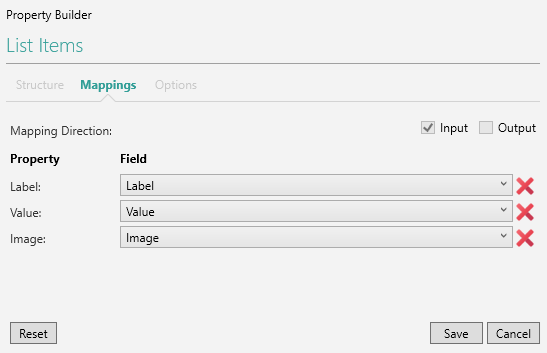
- From within the Elements Gallery, drag and drop a Radio List Element, placing it beneath the Label Element you added in the previous step. With the Radio List Element selected, within the Properties Pane, change the Label property to Has your child been diagnosed with asthma?. Set the Name property to asthma, then add a Required Rule, as you've done previously. With the Radio List Element still selected, within the Properties Pane, click the Data tab. Click the List Items button. When the Property Builder popout appears, click Create to add a Dataset for the Radio List. When the Mappings tab appears, remove the Image property by clicking the red cross next to it:
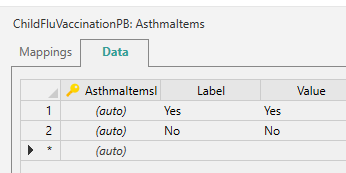
When the Image property has been removed, click Save. Go to the Project Explorer Pane and click the Datasources tab. Click the Project's Datasource, then click into the name of the Radio List Dataset (which will once again be shown in blue, and will include the word asthma), then change the name to YesNoOptions. Double-click the Dataset thumbnail to open it. On the Mappings tab, uncheck the Image row to remove it/make sure no Image row is visible. With the Dataset still open, click the Data tab. Add Yes and No values in the Label and Value columns for the Radio List:
Before you exit the Dataset, remember to check (tick) the Loads With Form property in the Properties Pane, beneath the Behaviour heading. When you've done this, within the Project Explorer Pane, click the Pages tab, then click the Page 3 (Immunisation History) thumbnail to return to the page.
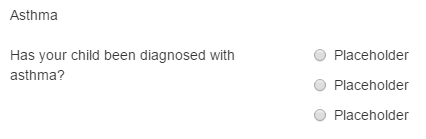
- To prove that your Radio List Element is now mapped to a Datasource, when you click back on the Immunisation History page, the Element will have 3 Placeholder values next to the Label, as illustrated below. The actual data for the Element won't be displayed until the Form has been Published and loaded into a browser.
- To prove that your Radio List Element is now mapped to a Datasource, when you click back on the Immunisation History page, the Element will have 3 Placeholder values next to the Label, as illustrated below. The actual data for the Element won't be displayed until the Form has been Published and loaded into a browser.
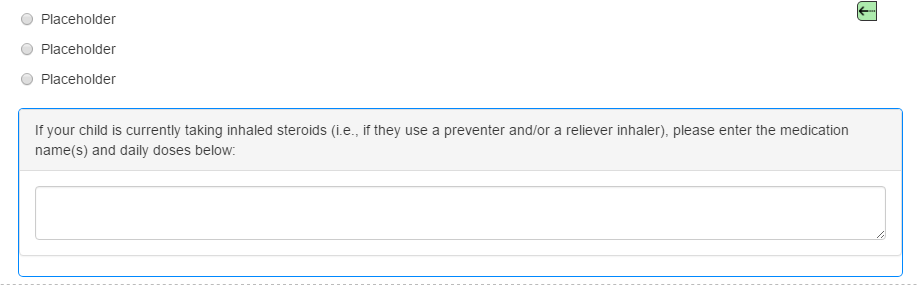
- Next, drag and drop a Spacer Element and a Text Panel Element from the Elements Gallery (in that order), and place them side-by-side beneath the Radio List Element. Click on the Spacer Element and move it so that the Text Panel Element is vertically aligned with the Radio List Element. With the Text Panel Element selected, within the Properties Pane, change the Label property to If your child is currently taking inhaled steroids (i.e., if they use a preventer and/or a reliever inhaler), please enter the medication name(s) and daily doses below: (remember to include the colon):
Next, with the Text Panel Element still selected, within the Appearance tab, click the Expression Builder button (
 ) next to the Visible property. When the Expression Builder popout appears, replace true with the following code: fluVac.page3.asthma.value=='Yes', as illustrated below: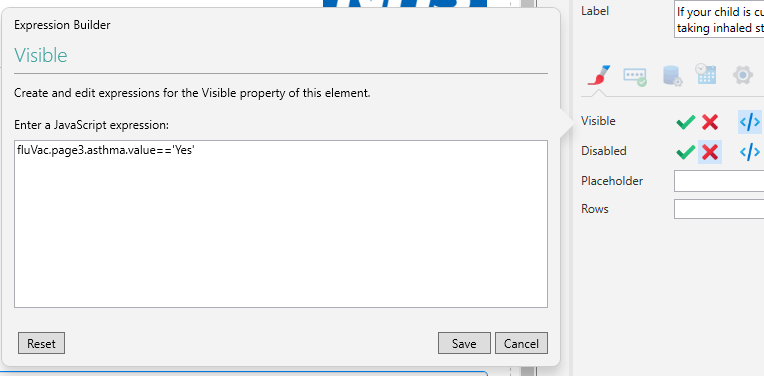
The code will hide the Text Panel Element until the value of Yes is selected from the asthma Radio List. Note that the Code Name for the Form has been used (fluVac) rather than its Name (FluVac). Any custom code used to reference Elements and other Form items will use the value contained within Code Name property:
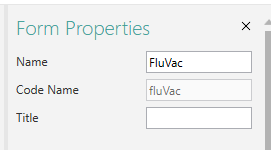
When the code has been entered, click the Save button.
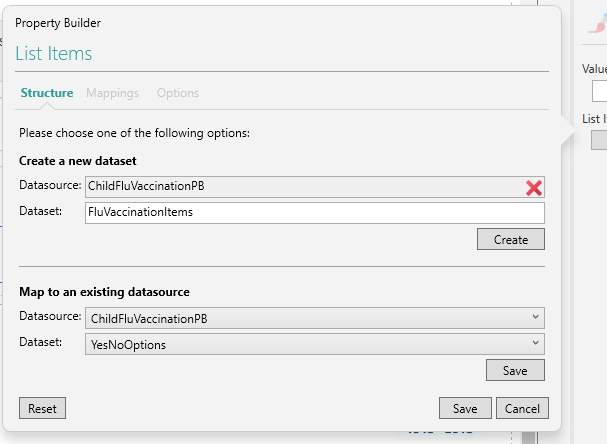
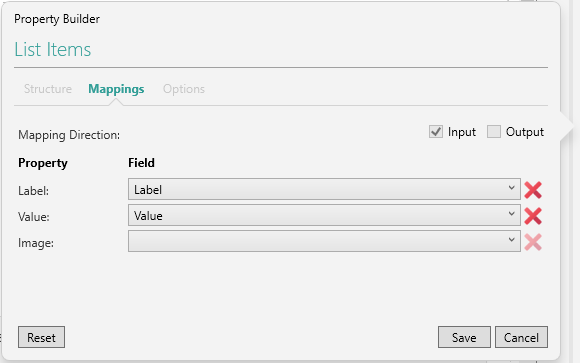
- Beneath the Text Panel Element, from within the Elements Gallery, drag and drop another Label Element. With the Label Element selected, within the Properties Pane, change the Text property to Previous Flu Vaccinations. Add another Radio List Element beneath the Label Element. With the Radio List Element selected, within the Properties Pane, change the Name property to fluVaccination, and change the Label property to Has your child already had a flu vaccination?. Add a Required Rule to the Radio List (using the Rules tab, as you've done previously), then, with the Radio List Element still selected, click the Data tab. Click the List Items button, and when the Property Builder popout appears, beneath Map to an existing datasource, select the drop-down options shown below (the name of the Datasource in both instances will contain your own initials):
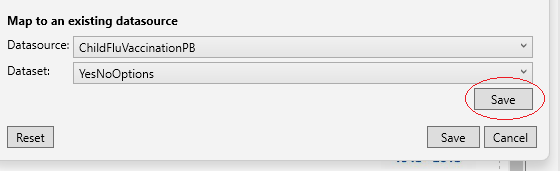
Click the Save button just beneath the Dataset drop-down under the Map to an existing datasource heading (circled in red, below):
When the Property Builder Mappings tab is displayed, set the Label property to Label, and the Value property to Value, then click Save.
Place a Spacer Element beneath the Radio List Element, then add a Text Panel Element to the right of the Spacer Element. Adjust the position of the Spacer Element so that the adjacent Text Panel Element is aligned vertically with the Radio List just above it. Click the Text Panel Element to select it, then set the Label property to Please state where and when this was administered: (include the colon, as you've done previously). On the Appearance tab, set the Visible Expression to the value shown below, as you did in Step 6 of this exercise (remember to click Save after you've entered the expression):
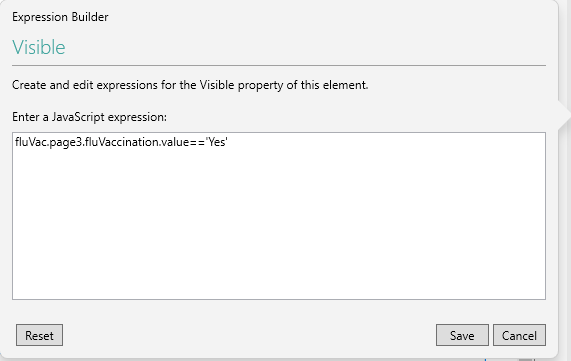
The code will hide the Text Panel Element until the value of Yes is selected from the Radio List Element above it. Remember that you won't be able to test your expressions until you Publish your Form and open it in a browser.
- Finally, click the Design tab above the Ribbon, then drag the NavButtons Template to the bottom of the Body section. This will place the Previous Button and Next Button Elements beneath the Spacer and Text Panel Elements. Click the Save button in the upper, left-hand corner of the screen to retain your changes.
Exercise 4 - Create the Consent for Immunisation Page
In this exercise, you will create the Form's Consent for Immunisation Page:
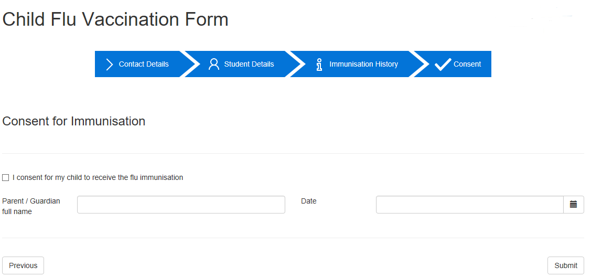
The main objectives of this exercise are:
- To add a Submit Button Element.
- To change an Element's colour theme using options available within the Properties Pane.
You will also add a Checkbox Element and an 'Arrows' Navigation Bar Element.
Exercise Steps
- From within the Project Explorer Pane's Pages tab, add a 4th page to your Project. When the page has been added, click its thumbnail to select the page.
- Drag and drop a Title Element from the Elements Gallery onto the page, placing it within the Body section. With the Element selected, within the Properties Pane, change the Text property to Consent for Immunisation. Highlight the text within the Element, then change the font size to 24pts, as you've done previously.
- Drag and drop a Separator Element from the Elements Gallery, so that it sits just beneath the Title Element.
- Drag a Checkbox Element from the Elements Gallery, and drop it beneath the Separator Element. With the Checkbox Element selected, within the Properties Pane, set its Label property to I consent for my child to receive the Flu Immunisation. Apply a Required Rule to the Checkbox Element, as you've done previously.
- Next, add a Text Box Element, placing it beneath the Checkbox Element. Within the Properties Pane, set its Label property to Parent/Guardian Full Name: (again, remember to include the colon). Apply a Required Rule to the Text Box Element.
- You might wish to consider using the Ink Picture Element instead of the Text Box Element for the Parent/Guardian Full Name field. This will allow the person filling-in the Form to sign their name using the mouse, or their finger, if using a device with a touch screen.
- Add a Date Picker Element next to the Text Box Element. With the Date Picker Element selected, with the Properties Pane, set the Label property to Date: (with the colon included). On the Advanced tab, deselect Allow Future Dates and Allow Manual Entry, leaving all other properties under the Behaviour heading selected.
- Add a Separator Element beneath the Date Picker Element.
- Add a Previous Button Element beneath the Separator Element.
- Add a Submit Button Element next to the Previous Button Element. With the Element selected, within the Properties Pane, click the Advanced tab. Beneath the Styles heading, set the Button Style to RightJustified. Deselect all other styles within the Button Style drop-down. Beneath the Behaviour heading check (tick) the Reset Form On Submit property:
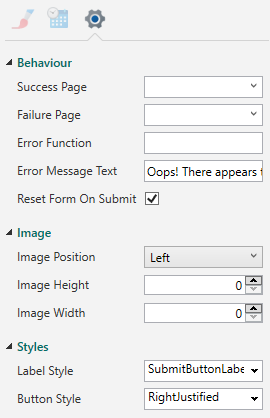
Go to the Project Explorer Pane and add two more pages to the Project. Click the thumbnail for Page 4 (Consent for Immunisation) - the page you've just been working on - to select it, then click the Submit Button Element to select it. Within the Properties Pane, on the Advanced tab, for the Success Page, choose Page5 from the drop-down. For the Failure Page, choose Page6 from the drop-down:
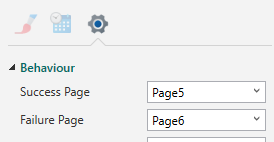
When the user submits the Form, if the submission is successful, they will be taken to Page 5, which will contain a Success message. If the submission fails, the user will be taken to Page 6, which will contain a Failure message. Both of these pages will be configured in the next exercise.
- Next, from within the Elements Gallery, drag an Arrows Navbar Element and place inside the Header section along its bottom edge. The Arrows Navbar Element can be found in the Navigation Bars section of the Elements Gallery:

When the Arrows Navbar Element has been added to the Header section, it should resemble the following:
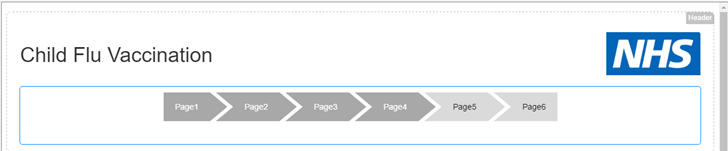
The Arrows Navbar Element uses generic page names (Page1, Page2, Page3 etc., as illustrated above, rather than Students Details page etc.), which can be edited, along with the Navbar colour.
- The page names used by the Arrows Navbar Element are taken from each page's Title property.
To change the colour (from the default grey shown above), select the Element. Within the Properties Pane - on the Appearance tab - click the Colour Theme property drop-down, then select Blue.
Next, go over to the Project Explorer Pane, and on the Pages tab, click the Page 1 thumbnail (not any of the Elements on the page) to select it. Within the Properties Pane, set the Title property to Contact Details. On the Appearance tab, set the Selected Image property to start_32_white.png (browse for the image within the downloaded training resources location), and set the Unselected Image property to start_32_black.png. The images will be displayed alongside the page Title within the Arrows Navbar Element.
Go back to the Project Explorer Pane and click the Page 2 thumbnail to select. Within the Properties Pane, set the Title property to Student Details. Set the Selected Image property to you_32_white.png, and the Unselected Image property to you_32_black.png.
Go back to the Project Explorer Pane and click the Page 3 thumbnail to select it. Within the Properties Pane, set the Title property to Immunisation History. Set the Selected Image property to extras_32_white.png, and the Unselected Image property to extras_32_black.png.
Finally, go back to the Project Explorer Pane and click the Page 4 thumbnail to select it. Within the Properties Pane, set the Title property to Consent. Set the Selected Image property to checked_32_white.png, and the Unselected Image property to checked_32_black.png. To see the images and Titles that you've just added, click the Reload on the Form Studio Ribbon. The Arrows Navbar Element should now resemble the following:

- On rare occasions (and at the time of writing), when you try to Publish your Form, you may encounter a permissions error relating to the folder where the Arrows Navbar Element is saved. If this happens, remove the Element, then add it back in again, following the steps discussed above. Re-save and re-Publish your Form, and the error should no longer be visible.
Exercise 5 - Create Success and Failure Pages
Exercise 5 is comprised of two parts. Part A deals with setting up the Form's Success Page, while Part B deals with setting up the Form's Failure Page. See the separate drop-downs, below, for more information.
Part A
In this part of Exercise 5, you will create the Form's Success Page:
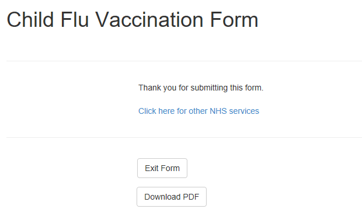
The main objectives of this part of Exercise 5 are:
- To use a redirect button.
- To create the Success Page.
A Link Element will be added to the Form which will include the URL for the main NHS UK website, along with a Button Element. When clicked, the link will take the user to the https://www.nhs.uk location, which will open in a new tab. You will also learn about button events. Note that the Download PDF button, shown above, is covered in a later exercise.
Exercise Steps
- Within the Project Explorer Pane, click on the Page 5 thumbnail to select the page.
- Drag a Label Element from within the Elements Gallery and drop it into the page's Body section. With the Element selected, within the Properties Pane, set the Text property to Thank you for submitting this Form.
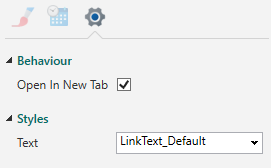
- From within the Elements Gallery, drag and drop a Link Element, placing it below the Label Element you've just added, within the Body section. With the Link Element selected, within the Properties Pane, set the URL property to https://www.nhs.uk, and the Text property to Click here for other NHS Services. On the Advanced tab, beneath the Behaviour heading, make sure the Open In New Tab property is selected:
- From within the Elements Gallery, drag and drop a Separator Element, placing it beneath the Link Element.
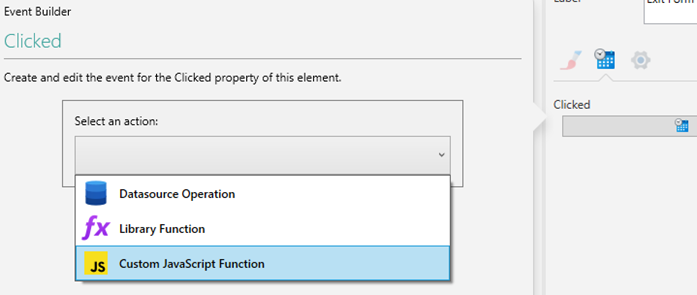
- Next, drag and drop a Button Element, and place it beneath the Separator Element. With the Button Element selected, within the Properties Pane, set its Label property to Exit Form. On the Events tab, press the Clicked button. When the Event Builder popout appears, from within the Select an action drop-down, select Custom JavaScript Function:
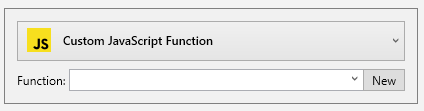
When Custom JavaScript Function has been selected, click the New button to open the JavaScript Editing Pane. The New button will appear just to the right of a Function drop-down when Custom JavaScript Function has been selected:
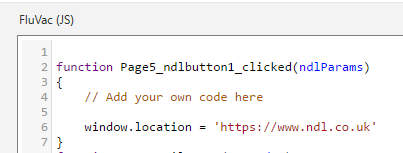
When the JavaScript Editing Pane opens, add a website URL just beneath the // Add your own code here comment, as illustrated below (making sure the code is entered between the opening and closing curly braces). The URL can be a website of your choice, and will be the location that will open when you click the Button you've just configured. In the example shown below, the user will be taken to the NDL website's Home Page:
Click off the JavaScript Editing Pane and back onto the Page 5 thumbnail within the Project Explorer Pane to return to Page 5, and to retain the JavaScript code.
Part B
In this part of Exercise 5, you will create the Form's Failure Page:
The main objectives of this part of Exercise 5 are:
- To use an email redirect link.
- To create the Failure Page.
You will also toggle the Design/Preview Mode option within the Form Studio Ribbon. This will allow you to preview the Form before it's Published (covered in the next exercise).
Exercise Steps
- Within the Project Explorer Pane, click on the Page 6 thumbnail to select the page.
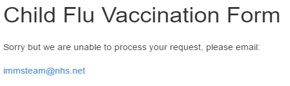
- Drag and drop a Label Element from the Elements Gallery, and place it within the Body section. With the Element selected, within the Properties Pane (on the Appearance tab), set the Text property to Sorry. We are unable to process your request. Please email: (include the colon, as you've done previously).
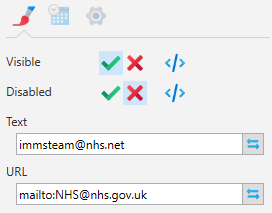
- Drag and drop a Link Element below the Label Element. With the Link Element selected, within the Properties Pane (again on the Appearance tab), set the Text property to immsteam@nhs.net, and set the URL property to mailto:NHS@nhs.gov.uk, as illustrated below. You can, if you wish, enter your own email address in the URL property, and use it for testing purposes:
- Within the Project Explorer Pane, click the Page 5 thumbnail (Success Page) on the Pages tab to select it. In the bottom, right-hand corner of the Form Studio window, click the Mobile layout button (circled in red, below):
Observe how the layout is responsive, and adjusts to work on any screen size. To return to the Desktop layout, click the Desktop layout button just to the left of the Mobile layout button.
- Within the Form Studio Ribbon, click the Design Mode button to switch from Design to Preview mode. Click the NHS link on the page to check that it opens in a browser. Click the button again to return to Design mode. The Preview mode can be used to test JavaScript functionality on the Form, but can't be used to test live server communications (i.e., any server communications such submit, or data downloads etc.).
- Save the Project using the Save button in the upper, left-hand corner of the screen (above the File option), as you've done previously.
Exercise 6 - Publishing Your Form
In this exercise, you will Publish and test your Form. The main objectives of this exercise are:
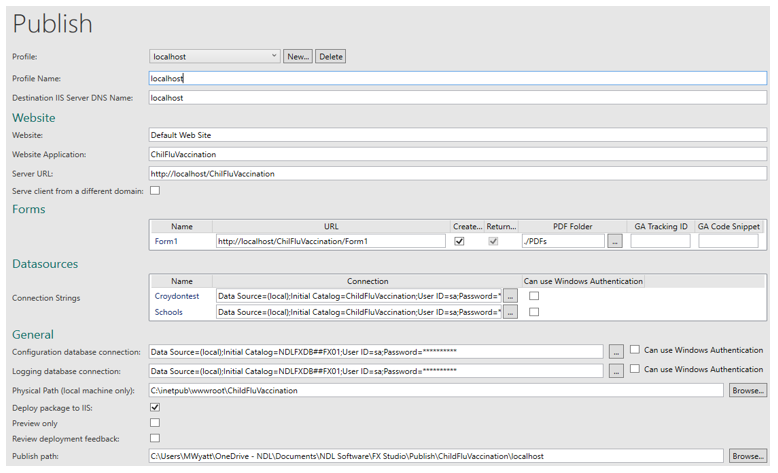
- To configure a Publishing Profile (as illustrated below).
- To successfully Publish your Form.
- To successfully write to the database.
- Before you attempt this exercise, you must make sure that you run your Form as an administrator. See Publish to Your Local Machine within the Publish Your Form topic for more information.
The exercise includes detailed steps for configuring the Publishing options.
Exercise Steps
- Within the Project Explorer Pane, click the Datasources tab. Right-click within the tab, and from the context menu, select New Datasource from Form:
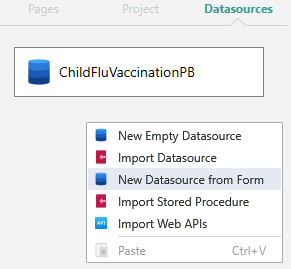
This creates a Table, based on your Form name, which will be used to store your Form data when it has been submitted. Form Studio will automatically create the Database, which will have the same name as your Project, when the Form is Published.
- In the upper, left-hand corner of the Form Studio window, click File, followed by Publish. A Publish screen similar to the one shown above will then be displayed. At the top of the screen, next to the Profile option, click the New button, then select Localhost. In the centre of the Publishing screen, within the Datasources section, click the Browse button next to the Connection Strings setting:

When the Browse button has been pressed, the following SQL Database Connection dialog box will be displayed:
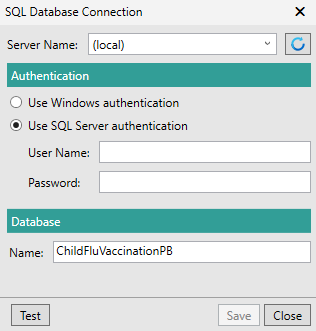
If you have installed Digitise Forms on your own machine, enter (local) for the Server Name. If you are using one of the NDL Virtual Machines, enter .\sqlexpress. Select Use Windows authentication and enter your usual username and password. Click Test to make sure the connection can be made to the database, then press Save to retain the connection information. Repeat these connection steps for the Configuration Database and the Logging Database - both displayed lower down the Publishing screen under the General heading.
- As you develop your Form and as more Datasources are added to your Project (under the Datasources heading), you will need to connect to each of those Datasources (within the Publish screen), to ensure that all of the data created and required can be stored/accessed in the desired manner. If you don't connect to all of your Datasources (and to the databases listed beneath the General heading), using the credentials discussed above, you will receive a connection-related error whenever you try to Publish your Form. An example of an additional Datasource can be found in Exercise 8, where you will create a PDF version of your Form, and which will require a connection to be made to the NDLFXFile Datasource.
If you try to Publish your Form and the User ID and Password information isn't visible within your connection strings, this indicates that those connections will need to be configured before the Form can be Published. When Datasources have been added, in order to successfully Publish your Form, the end of each connection string should resemble the following:
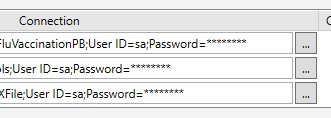
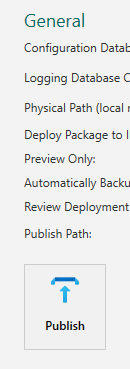
Next, click the Publish button at the bottom of the Publishing screen:
If you receive a warning similar to the one shown below, this is because the referenced Text Panel Elements have custom JavaScript assigned to them, making them hidden until the user selects Yes for the Radio List Elements associated with them (see Page 3 of the Form), which is expected behaviour. The warning message will appear whenever you try to Publish your Form, but it won't stop it from being Published.
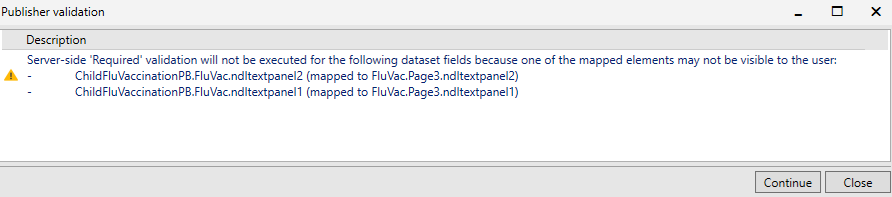
- As you repeatedly Publish and re-Publish your Form, you may encounter a number of different Publishing warnings and error messages. Warnings let you know about things that might be wrong with your Form (but which could be legitimate), but which won't stop it from being Published. Errors, on the other hand, will stop the Form from being Published and will require immediate action.
In Exercise 4, you added an Arrows Navbar Element to your Form. As discussed in the Note at the end of that exercise, the addition of the Arrows Navbar Element results in a folder permissions error, which must, at the time of writing, be resolved in order for the Form to be Published. The Element will need removing and then reinstating in order for the error to be rectified. Closing Form Studio, re-opening it, and then re-Publishing your Form, could however, cause the error to occur once again.
In Exercise 11, you will validate your Form by configuring a Regular Expression. When you've implemented and tested the Regular Expression, provided it works as expected, a server-side validation warning will be displayed every time you re-Publish your Form. The warning can be safely be ignored.
Click Continue to allow the Publishing process to proceed. When completed, a message similar to the one shown below will be displayed. When the message appears, click OK.
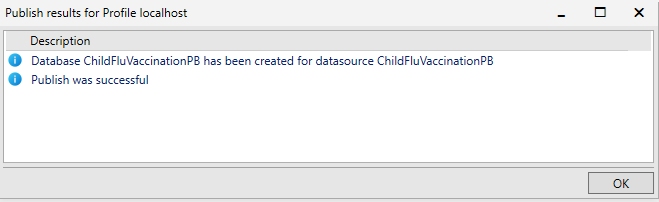
With the Form Published successfully, go to the Forms section of the Publishing screen and copy the information displayed for the Form's URL (e.g., http://localhost/ProjectName/FormName). Paste the copied URL into a browser to test the Form, and enter values in the Form's fields. Fields with a Required Rule assigned to them will have a red asterisk next to them - '*' - and will have a red border around them if you leave them empty and try to move to another page or submit the form. Non-required fields can be left empty. When the fields have been populated, submit the Form.
- Because the Submit button's Reset Form On Submit option was selected in Exercise 4, Step 9, if the Form submits successfully, it will automatically be reloaded. To avoid this happening, and to allow you to exit the Form in the expected manner, go to Page 4, select the Submit button, and on the Properties Pane's Advanced tab, deselect this option. Save, re-Publish, and then re-test your Form. You should now be able to exit the Form (using the Exit button) and be sent to the website that you configured to load after the Exit button has been pressed - see Exercise 5, Part A, Step 5 (Page 5 on the Form).
When you have submitted the Form, open SQL Server Management Studio (or a suitable alternative) on the VM or your own machine. From the Start menu, type SQL, then click the link to the application. When SQL Server Management Studio opens, for the Authentication, select Windows authentication, enter your usual username and password, then click Connect. You may need to change the Server name, depending on whether you are using the NDL Virtual Environment, or your own machine.
When SQL Server Management Studio loads, in the left-hand Object Explorer Pane, expand Databases. Expand the ChildFluVaccinationZZ database (again, the ZZ will be your own initials), then expand Tables. Right-click on the dbo.FluVac table and from the context menu, select Select Top 1000 Rows:
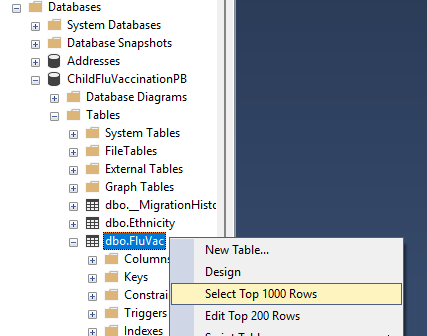
When you do this, the record(s) that you submitted using the Form will be displayed adjacent to the Object Explorer Pane in the lower half of the SQL Server Management Studio window. Re-load the Form and add more records with different Yes/No answers to check that the Form works for all cases. Check also that the Text Panel Elements only appear when the Radio List Elements have their Yes answers selected.
- As you develop your Form and as more Datasources are added to your Project (under the Datasources heading), you will need to connect to each of those Datasources (within the Publish screen), to ensure that all of the data created and required can be stored/accessed in the desired manner. If you don't connect to all of your Datasources (and to the databases listed beneath the General heading), using the credentials discussed above, you will receive a connection-related error whenever you try to Publish your Form. An example of an additional Datasource can be found in Exercise 8, where you will create a PDF version of your Form, and which will require a connection to be made to the NDLFXFile Datasource.
Exercise 7 - Create a School Code Lookup
In this exercise, you will add a School Code Lookup:

The main objectives of this exercise are:
- To import a Datasource.
- Create a new query in your Datasources.
- Add a button to perform the Datasource Lookup.
As part of this exercise, you will open Microsoft SQL Server Management Studio and add school names (of your choosing) to the Schools database.
Exercise Steps
- Within the Project Explorer Pane, click the Page 1 thumbnail to select the page. Drag and drop a Button Element from the Elements Gallery and place it to the right of the School Code Text Box Element. With the Button Element selected, within the Properties Pane, change the Label property to Find School. Drag and drop a Spacer Element from the Elements Gallery, and place it to the right of the Email Address, just above the Find School button:
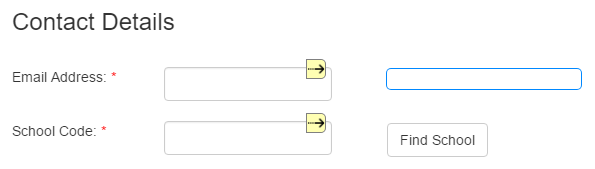
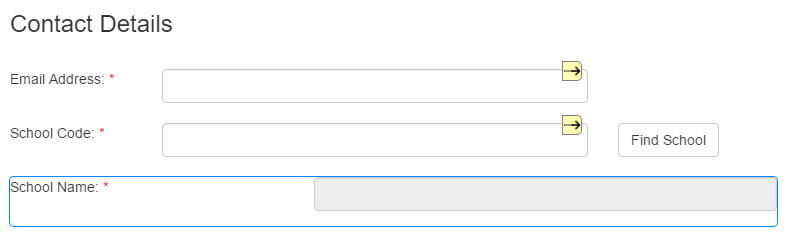
Drag and drop a Text Box Element from the Elements Gallery and place it beneath the School Code. With the Text Box Element selected, within the Properties Pane, change the Label property to School Name: (remember to include the colon). As you've done in previous steps, set the School Name to be a Required field. Next, set the School Name to be Read-Only. To do this, on the Appearance tab, click the green tick icon next to the Disabled property:
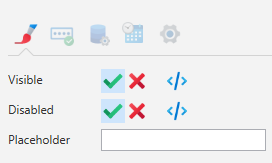
This will make the field visible, but Read-Only. To check this, click the Reload button in the Ribbon. When the page refreshes, the field will be shown grey-filled, indicating that nothing can be entered in it manually:
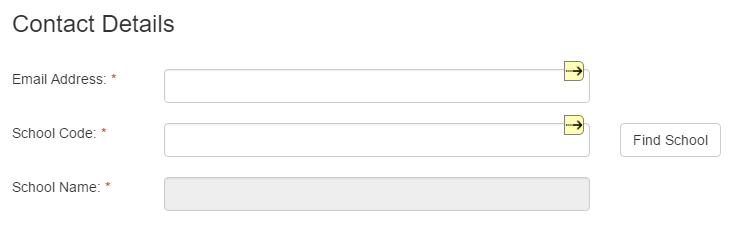
Drag and drop a Spacer Element from the Elements Gallery and place it to the right of the School Name field to fill the gap:
- For this next part of the exercise, you will need to access a Schools database and the associated SchoolOptions table. This will be available to you if you are working in the NDL VM environment. If you are using your own machine, you will need to create the database, then run a script (which will be included with the image resources when you download the training resources) to create the SchoolOptions table.
To do this, open SQL Server Management Studio, and in the left-hand Object Explorer Pane, right-click on Databases, and from the context menu, select New Database. Name the new database Schools, then click OK. Right-click on Databases once again, and select Refresh:
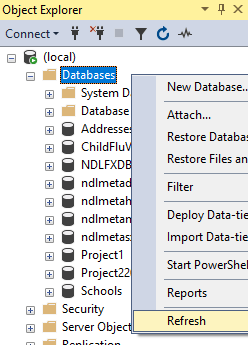
The Schools database will then be visible within the Databases tree. Next, go to your downloaded resources and copy the code in the Schools.sql file (open the file in Notepad, or Notepad++). Go back to SQL Server Management Studio, then right-click on the Schools database. Select New Query, then paste the copied code into the New Query window. Click the Execute button above the New Query window:
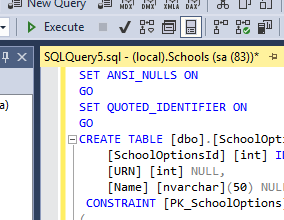
When the code has been run, the SchoolOptions table will have been created, and will contain two sample school records. To view the records, expand the Schools database, then expand Tables. Right-click on the SchoolOptions table, and from the context menu, select Select Top 1000 Rows. The two sample schools (Winston and Churchill), will then be displayed adjacent to the Object Explorer Pane in the lower half of the SQL Server Management Studio window:
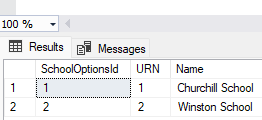
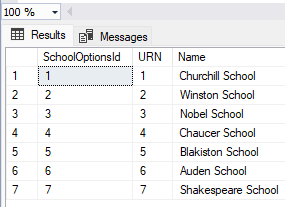
Add more schools of your choice - as many as you wish - to increase the number of schools contained within the table. To do this, right-click on the table, and from the context menu, select Edit Top 200 Rows. Add a sequential URN, along with a school name. Use URNs that increase by 1 each time on each subsequent record added, and don't, under any circumstances, use random numbers. The URNs will be checked later on when you come to validate your Form, so it's important that the URN starts with 1 on the first record, is set to 2 on the second record, and is set to 3 on the third record, etc. When you've added more schools, right-click on the table name once again and select Select Top 1000 Rows. The additional schools should then be visible, as illustrated below:
- Go back to your Forms Project.
- In the left-hand Project Explorer Pane, click the Datasources tab.
- Right-click anywhere within the Datasources tab, and from the context menu, select Import Datasource. When the SQL Database Connection dialog box appears, enter the credentials that you used when you first Published your Form (including the required server name). See Exercise 6, Step 2. For the Database name, select Schools:
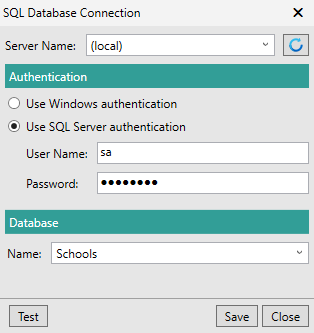
Test the connection using the Test button, then click Save. A dialog box will then appear, asking you to select the tables you wish to map to the Datasource:
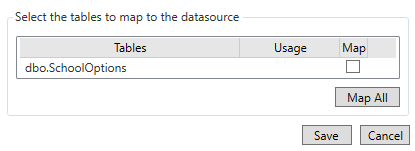
Check (tick) the dbo.SchoolOptions table to select it within the Map column, then click Save. A new Datasource named Schools will then be visible on the Project Explorer Pane's Datasources tab:
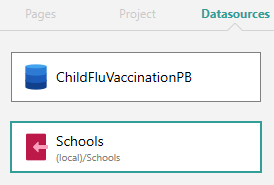
Make sure the Schools Datasource is selected, then within the Form Studio Workspace, double-click the SchoolOptions Dataset thumbnail:
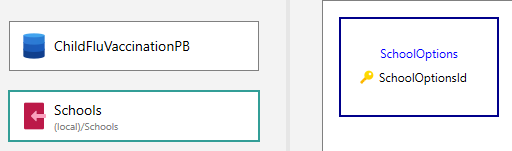
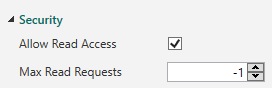
Double-click the SchoolOptions Dataset, and within the Properties Pane, check (tick) the Allow Read Access property, under the Security heading:
With the Mappings tab selected, within the lower, Queries Pane, copy the code next to SelectByKey, then click the New Query button. Paste the code into the empty box labelled as Query. With the code now pasted, go to the end of the code and just after WHERE, replace [SchoolOptionsId]=@SchoolOptionsId with [URN]=@URN. Click into the Name column and change the new query name to SelectByURN, then click the Save button at the top of the Form Studio window. Your new query should now look like the following:

- Within the Project Explorer Pane, click the Pages tab, then click the Page 1 (Contact Details) thumbnail to select the page.
- Click the Button Element (labelled as Find School) to select it. Within the Properties Pane, click the Events tab, then click the Clicked button. When the Event Builder popout appears, from within the Select an action drop-down, select Datasource Operation. For the Action, select LoadDatasource. For the Datasource, select Schools. For the Dataset, select SchoolOptions. For the Query, select SelectByURN. Click the blue Event Builder icon (
 ) next to the @URN property. Within the additional popout that will appear on top of the existing one, for the Page, select Page1. For the Element, select SchoolCode. For the Property, select Value. When the options have been selected, the dialog box should resemble the following:
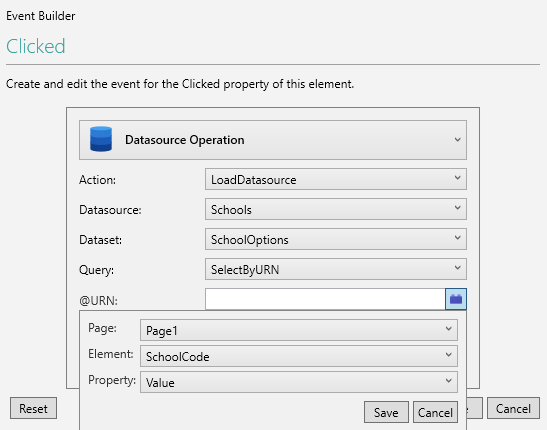
Click Save on the additional popout. The @URN property will then become populated with Page1.SchoolCode.value. Click Save again to retain your changes.
Staying on Page 1, click the School Name Text Box Element to select it. Within the Properties Pane, click the Data tab. Click the Mapping button (
 ) at the right-hand side of the Value property. When the Mapping Builder popout appears, under the Input heading, select Schools for the Datasource. Select SchoolOptions for the Dataset, and select Name for the Field: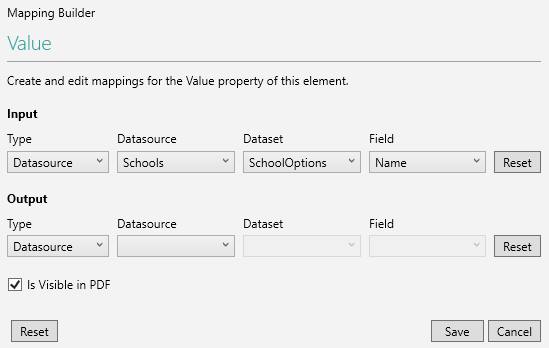
Click Save to retain your changes. Press the Reload button in the Ribbon, and notice how the School Name Text Box Element now has green and yellow directional arrows alongside it. The field will also contain the names of the various elements from within the Schools database:

This indicates that the field is now input-mapped to the Name field in the SchoolOptions Dataset. When the user enters a value into the School Code field (i.e., the school's URN), that value is used to perform a Database lookup - the results of which will then populate the School Name Text Box Element with the Name of the school.
You should now save and re-Publish your Form. Test the Form by entering a valid URN from the SchoolOptions database table into the School Code field. If you enter an invalid URN, the lookup will fail. When you've entered a valid URN, press the Find School Button Element alongside it. The name of the corresponding school should then be displayed within the School Name Text Box Element.
Exercise 8 - Generate a PDF
In this exercise, you will configure your Form to generate a PDF:
The main objectives of this exercise are:
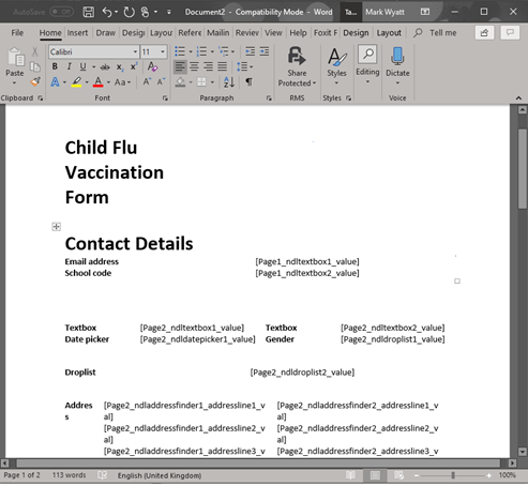
- To generate a Word Template.
- To customise the Template.
- To successfully generate PDFs.
As part of this exercise, you will configure a number of options that will allow a PDF to be generated, based on the Form's contents.
Exercise Steps
- Within the Project Explorer Pane, click the Project tab.
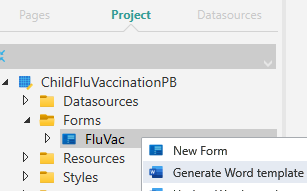
- Expand the Forms tree item, then right-click on FluVac.
- From the context menu, select Generate Word template:
When the PDF Template Generation dialog box appears, click View Template:
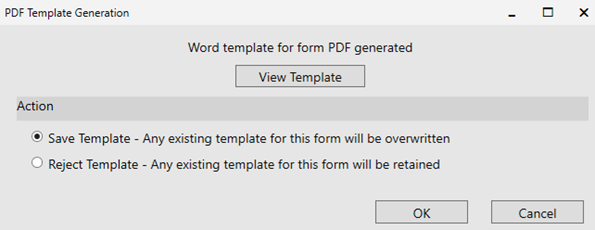
This opens MS Word, and displays the fields within the PDF Template. Edit the layout/position of the fields at this point, if you wish. Close Word to return to the PDF Template Generation dialog box. With the Save Template option selected, click OK to retain the Template. If you don't want to keep the Template, click Reject Template, then click OK. Note that if you've previously created a PDF Template and you reject the current one, the previous one will be retained. When you click OK, the save location for the PDF Template will be displayed. With the save location visible, you can either save the Template without editing it, or open MS Word once again to perform an edit:
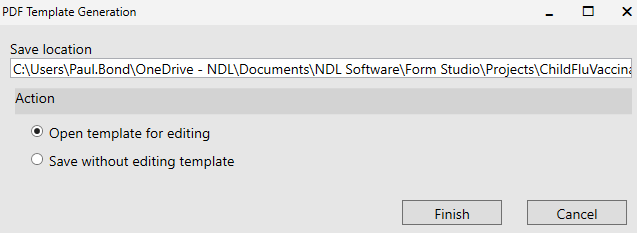
Click Finish.
- Next, create a folder on your machine (or within the Virtual Environment) where the PDF of your Form will be saved (which isn't the same as the PDF Template location, discussed above). This can be any accessible location. Give the folder an appropriate name such as C:\Child_Imm_PDFs.
- Return to Form Studio and save your Project using the Save button, as you've done previously.
- Publish your Form by clicking File, followed by Publish.
- When the Publish screen appears, within the Forms section, check (tick) the Create PDF on Submit option:

Just to the right of the Create PDF on Submit option, click the Browse button alongside the PDF Folder option to browse to the location of the folder that you created in Step 4:

Note that in some situations, you may need to update the security settings of the folder to grant the user IIS_IUSRS Read and Write access to the folder. Speak to your network administrator if you need to have these permissions set, which will become evident when you try to retrieve the generated PDF, as discussed in Step 11, below.
- Remember to check that all Database connections have been configured on the Publish screen. In particular, check that you have configured the NDLFXFile connection string, and that it contains the credentials discussed previously:

- Remember to check that all Database connections have been configured on the Publish screen. In particular, check that you have configured the NDLFXFile connection string, and that it contains the credentials discussed previously:
- Click the Publish button at the bottom of the Publish screen. If you receive any warnings, or a notification asking you to upgrade the existing database, ignore the warnings and upgrade the database in order to allow the Publishing process to continue. Note that when you choose to upgrade a database, another dialog box will appear, re-affirming your choice. Click OK to dismiss this dialog box, once you've read the information.
- After your Form has been Published, copy the Form's URL from within the Forms section of the Publish screen, then paste it into a browser.
- Complete the Form, then submit it.
- When the Form has been submitted, open the folder that you configured in Step 4. This should now contain a PDF version of your completed Form, as illustrated below:
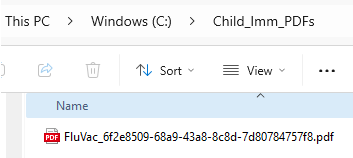
- Now that you have successfully saved a PDF copy of your completed Form in the desired location, return to Form Studio. Within the Project Explorer Pane, click the Pages tab, then click the Page 5 (Success Page) thumbnail to select it.
- From within the Elements Gallery, drag and drop a Get PDF Button Element into the Body section, placing it to the right of the Button Element (i.e., the Exit button). With the Get PDF Button Element selected, on the Properties Pane's Advanced tab, for the Button Style, select RightJustified, and deselect any other styles.
- Save the Project and re-Publish your Form.
- Copy the Form's URL into a browser, then run it.
- When you reach the Success Page, click the Get PDF Button Element to make sure you can download a PDF of the completed Form. The PDF will displayed on-screen, and will contain all of your Form's fields/Elements.
- Close the downloaded PDF, then exit the Form.
Introduction to Exercises 9 to 15
Three months have passed since you Published your Child Flu Vaccination Form for the Vaccination Department. The Form has been a great success, and the Vaccination Department have put forward a request for the Form to be enhanced by incorporating some extra features. They would like to add an additional question to the Form, and implement some data validation. They would also like the Form to be styled so that it mirrors the appearance of other eForms within the organisation (using the company's standard stylesheet).
To enable you to carry out the above enhancements, your manager has sent you the following instructions:
- Use the organisational stylesheet provided to ensure your Vaccination Form carries the same branding (i.e., font, colours, etc.) as the other organisational Forms.
- Add a feature that allows the Parent or Guardian completing the Form to select from a list of Titles/Prefixes when entering their name.
- The Vaccination Department have noticed that the Form allows the Parent/Guardian to enter any value into the School Code Element. There are only 7 schools in this district, so we need a way of ensuring that the School Code is a value between 1 and 7. Add validation to the School Code Element to enable this.
- The number of schools quoted above (7 schools) is for illustration purposes only. The actual number of schools present will depend on how many school records you added to your Schools database in Exercise 7.
- Update the Ethnicity drop-down so that it contains more options. We also need the options to be displayed in alphabetical order to make it easier to find the Ethnicity.
- Add an additional question that allows the Parent/Guardian to select any other medication their child is taking. The Vaccination Department have provided you with a list of medicines they would like displaying on the Form. Ensure there is an option to choose ‘Other’ and when this is selected, we want to display a Text Box allowing the user to enter any medication not listed.
- Automatically capture the date on which the Form was submitted.
- Before you begin this next block of exercises, we advise taking some time to recap on what you did during Exercises 1 to 8.
Exercise 9 - Working With Styles
The main objectives of this exercise are:
- To import a stylesheet.
- To apply styles to Elements.
This exercise will take you through using a stylesheet and downloading an image to be used as part of the Form's branding. Note - see the Styles topic for more information.
Exercise Steps
- Locate the NHS stylesheet resource and import it into your Project. If you are using your own machine, go to the location into which the training resources have been downloaded. If you are working within the NDL Virtual Environment, open the C:\Training Material\Resources\CSS folder. Make sure you can access the stylesheet labelled as NHS-stylesheet.css.
- To import the stylesheet, within the Project Explorer Pane, click the Project tab. Right-click on the Resources tree item, and from the context menu, select Add New Resource:
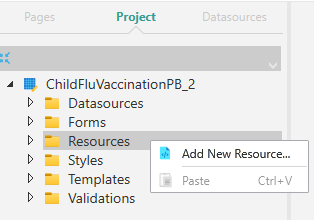
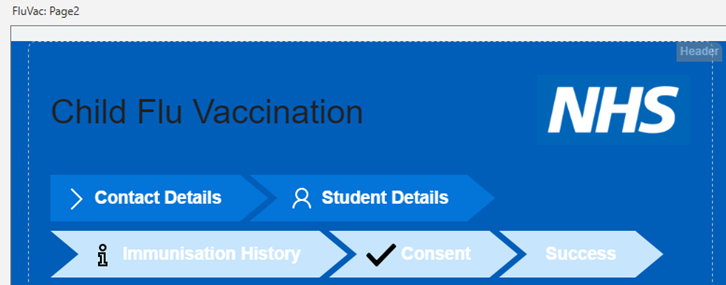
Browse to the location where the NHS stylesheet has been saved, then import it. When the stylesheet has been imported, click the Developer tab above the Form Studio Ribbon, then press the Reload button, or click the Reload button at the right-hand edge of the Ribbon. You will notice how different formatting has been applied to the Form after the refresh, based on the imported stylesheet:
- Within the Project Explorer Pane, click the Pages tab, then click the Page 1 thumbnail to select the page. Click the Find School Button Element to select it, then within the Properties Pane, click the Advanced tab. For the Button Style property, click the drop-down to open it, then find and check (tick) the ButtonPrimary style. This will turn the button green, and will apply a small amount of black shadow to the button's bottom edge. The button text will also turn white:
Do the same for the Page 1 Next Button Element, then apply the same style to all Button Elements on all pages of your Form (including the Navigation buttons).
- Next, go to your own organisation's website and download the main organisation logo, saving it into an accessible location. If you're having trouble locating and saving the logo, browse for a suitable alternative and use this instead. With the logo saved, click into the Header section of any of your Form's pages. Click the Image Element (which currently contains the NHS logo), and within the Properties Pane, click the Data tab. For the Static Source property, browse for, and select, the logo you've just saved.
- You should update the Form's PDF Template before you re-Publish your Form from this point forward, so that it contains all of the Form's Elements. See Exercise 8 for a reminder of how to create the Form PDF. Note that when updating an existing PDF Template, you can select Update Word template when you right-click on the Form name within the Project Explorer's Project tab, rather than Generate Word template:
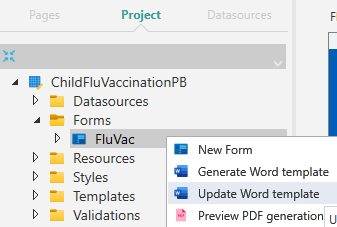
- You should update the Form's PDF Template before you re-Publish your Form from this point forward, so that it contains all of the Form's Elements. See Exercise 8 for a reminder of how to create the Form PDF. Note that when updating an existing PDF Template, you can select Update Word template when you right-click on the Form name within the Project Explorer's Project tab, rather than Generate Word template:
- Save and then re-Publish your Form, then copy the Form's URL as you've done previously. Note that when you Publish your Form, you may need to re-configure some of the database connection strings following the style change, which could revert to their default (empty) state. Check the connection strings before pressing the Publish button. When the Publishing process has finished, paste the URL into a browser, and make sure that a) the new styling has been applied, and b) the new logo appears in the Header section on all pages, as expected.
Exercise 10 - Form Datasources
The main objectives of this exercise are:
- To use the Complex Name Element.
- To update Datasources.
This exercise will take you through replacing a Text Box Element with the Complex Name Element. It will also take you through removing a Datasource and then adding a new one. You will also create a new PDF of the Form's data to reflect the changes.
Exercise Steps
- Within the Project Explorer Pane, click the Pages tab, then click the Page 2 (Student Details) thumbnail to select the page.
- Remove both the First Name and Surname Text Box Elements (right-click on each Element, and from the context menu, select Delete, or click the Element to select it, then press Delete). Drag and drop a Complex Name Element from the Elements Gallery and place it just above the Child's DOB and Gender fields, where the First and Surname Text Box Elements were located.
- Drag and drop a Separator Element from the Elements Gallery and place it just beneath the Complex Name Element which you've just added.
- Click the Complex Name Element to select it, and within the Properties Pane, set the Label property to Student's Full Name.
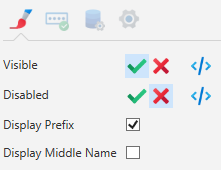
- Click the Appearance tab and deselect the Display Middle Name property (so that only Title, First Name, and Surname will be used):
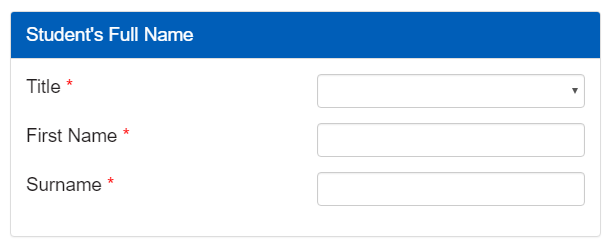
- Click the Rules tab. For the Prefix, First Name, and Surname, add a Required Rule for each, as you've done previously. When the Rules have been applied, click the Reload button in the Form Studio Ribbon. A red asterisk should then be visible next to each of the Name fields to show that they are required:
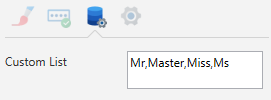
- With the Complex Name Element still selected, within the Properties Pane, click the Data tab. For the Custom List property, enter comma-separated values that you would like to use for your Titles/Prefixes drop-down, as illustrated below:
- Next, within the Project Explorer Pane, right-click within the Pages tab (placing your mouse cursor between the page thumbnails) and from the context menu, select New Datasource from Form. If you right-click on any of the page thumbnails, the New Datasource from Form option won't be displayed. When you've selected the option, the FluVac Dataset, created earlier, will be updated so that it includes the Complex Name Element fields. Within the Project Pane, click the Datasources tab, then click the ChildFluVaccinationZZ Datasource. Double-click the FluVac Dataset, and on the Mappings tab, scroll down the list of fields. The Complex Name Element fields will now be included within the list, prefixed with ndlcomplexname1, as shown below:
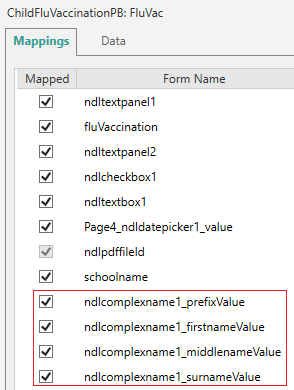
Within the Mappings tab's Mapped column, click the ndlcomplexname1_middlenameValue (the Middle Name row) to deselect it. The row will be removed, instantly, from the list of mapped fields. Scroll up the list of mappings and look for a firstname and a surname row (not the Complex Name firstname and surname rows). Deselect both of these two rows as well, and again, they will be instantly removed from the list of mapped fields.
- Because the rows discussed above will be immediately removed when you deselect them, be careful when clicking the checkbox to delete each row within the Mapped column. You could accidentally click more than one checkbox at once because of how quickly each unchecked row is removed. If you accidentally remove a row, you will need to re-create your Form data to reinstate the row you've deleted, following the steps discussed above.
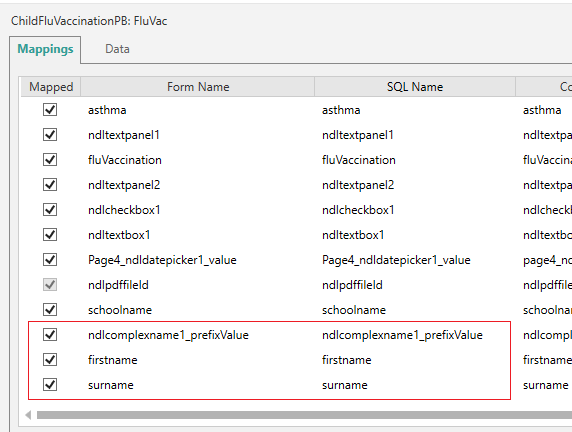
When the firstname and surname rows have been removed, scroll down the list of mappings and find the Complex Name surname (ndlcomplexname1_surnameValue) row. Click into the row's SQL column, then change the name to whatever Name value you configured within the Properties Pane when you first added the original Surname Text Box Element to your Form's Page 2 (which you removed in Step 2). This should be surname. Do the same with the Complex Name's firstname field (ndlcomplexname1_firstnameValue). Change this name to whatever Name value you configured for the original First Name Text Box Element, which should be firstname. What you're doing here is, as mentioned above, performing a like-for-like substitution of the Complex Name fields for the now deleted First Name and Surname. When you've removed the rows and changed the names as discussed above, your revised Complex Name mappings should resemble the following (leave the Complex Name Prefix name as is):
Next, within the Project Explorer Pane, click the Pages tab. Click the Page 2 (Student Details) thumbnail to select the page, then click the Complex Name Element to select it. Within the Properties Pane, click the Data tab. Click the Mapping button (
 ) next to the Middle Name, and when the Mapping Builder popout appears, click the Reset button at the right-hand side of the Output row to clear the row's contents. With the contents cleared, click Save to close the popout. Within the Data tab, you should now only have mapping information visible in the lower of the two mapping rows for the Complex Name's Prefix, First Name, and Surname fields: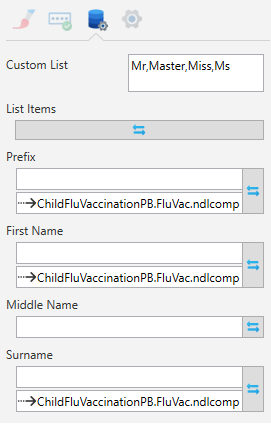
- Save the changes to your Project, then update your Form's PDF Template so that it includes the Complex Name fields. Within the Project Explorer Pane, click the Project tab. Expand the Forms tree item, then right-click on FluVac and select Update Word template, as discussed earlier. When Word opens, check that the Complex Name fields have been included in the PDF Template.
- With the Project saved, you can now re-Publish your Form and run it, checking to see whether the Complex Name fields appear as expected, and that the PDF contains those fields. Either download the PDF (using the Download PDF button) and view it while the Form is still open, or close the Form and check the PDF in the PDF folder. Pay close attention to the Prefix drop-down, which should contain the Titles that you added as a Custom List.
- When you Publish your Form after making the Complex Name changes, you may once again be presented with an option to upgrade the existing database. Agree to the upgrade, click OK within the next dialog box, then the Publishing process will continue (and should complete successfully).
Exercise 11 - Form Validation
The main objectives of this exercise are:
- To use a Regular Expression.
This exercise will take you through using a Regular Expression to limit the values that can be entered in a Text Box Element. See the Validate User Input topic for more information. The Regular Expression will be applied using the Rules tab for the Text Box. The following article contains information on Regular Expressions, which you might find useful:
Exercise Steps
- Within the Project Explorer Pane, click the Pages tab, then click the Page 1 thumbnail to select the page. Click the School Code Text Box Element to select it, then within the Properties Pane, click the Rules tab. Click the button next to the Required Rule which you configured in Exercise 1. When the Rules Builder popout appears, click the Add New Rule button. From the options displayed, select Regex:
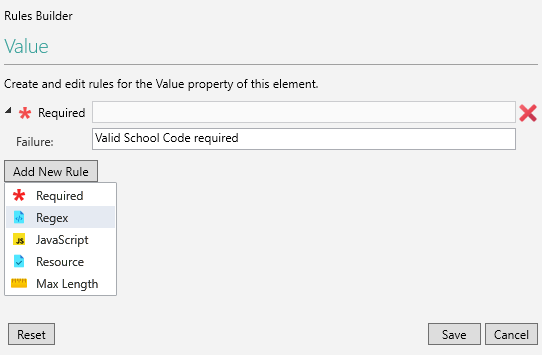
- When the Regex rule is added, within the empty box next to RegEx, add the following code: ^[1-7]$:

Enter an optional Failure message, as illustrated above. The code tests for any integer value between, in the example shown above, 1 and 7. The value will be the School Name's URN. Check how many School Name records you have in your own database, and adjust the code accordingly. If you have 10 codes, then the expression should contain [1-10]; for 11 codes, it should contain [1-11], etc. In the School Names table used for this Workshop example, the database table contains 7 records, so the Regular Expression is therefore looking for a URN between 1 and 7:
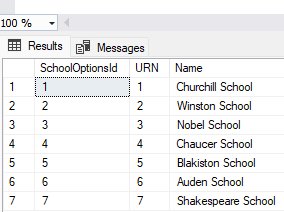
Click Save to retain your changes and to close the Rules Builder popout.
- Update your Form's PDF Template, as discussed above. You can then save your Project and re-Publish your Form. When the Publishing process begins, you will be presented with a warning message similar to the one shown below, informing you that the validation can't be repeated server-side. This is expected behaviour, so click Continue to dismiss the message, and to complete the re-Publish. Your Project can be configured so that this warning message won't appear, but this aspect of Digitise Forms won't be covered within this particular Workshop.
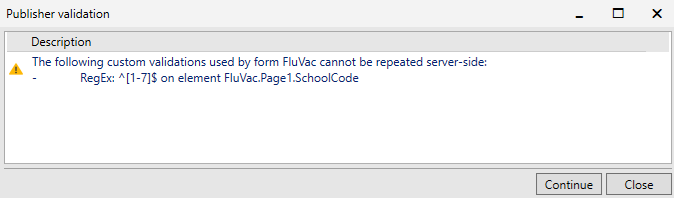
When the Form has been re-Published, test the Form to make sure that when you enter a School Code URN that is outside the range of your configured Regular Expression, you won't be able to continue until a valid URN is submitted:

Exercise 12 - SQL Data and Queries
The main objectives of this exercise are:
- To add extra Ethnicity options to the Form using SQL Server Management Studio.
- To create a new SQL Query to order the Ethnicity table, alphabetically.
Exercise Steps
- Open SQL Server Management Studio and add additional records into the EthnicityOptions table. To do this, within the Object Explorer Pane, expand the Databases tree item, then right-click on the ChildFluVaccinationZZ database name. From within the context menu, select New Query. Place the following code in the query window:
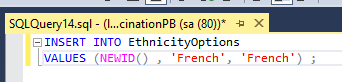
The code will allocate a new Record ID, and will place the ethnicity name in the table's Label and Value columns. Click Execute above the query window, then right-click on the EthnicityOptions table name, and from the context menu, select Select Top 1000 Rows. The new record will then be visible within the table:
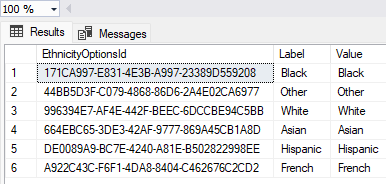
You will need to run the above query for each new record that you wish to add to your EthnicityOptions table.
- Return to your Project in Form Studio.
- Within the Project Explorer Pane, select the Datasources tab. Click the the ChildFluVaccinationZZ Datasource, then double-click the EthnicityOptions Dataset to open it.
- With the Mappings tab selected, within the lower Queries Pane, click the New Query button to add a new query row. Click into the query name and change the name to OrderByLabel. Copy the code for the SelectByKey query, then paste it into the empty query row. Edit the code that you've just pasted into the new query row so that it looks like the following (the query will be the same, apart from the end portion - replace the WHERE clause with the ORDER BY clause):

- With the new query now created, it can be set as the default. With the Dataset still open, within the Properties Pane, beneath the Behaviour heading, select the OrderByLabel query that you've just created from within the Default Query drop-down:
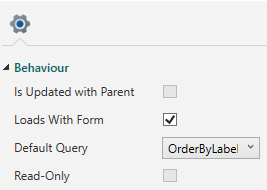
- Update your Form's PDF Template. Save and re-Publish your Form, then run it to check whether the query has ordered the contents of the Ethnicity drop-down alphabetically.
Exercise 13 - Importing Tables
The main objectives of this exercise are:
- To create a new table in SQL Server Management Studio.
- To import the new table into Form Studio.
This exercise will take you through adding and configuring a table using SQL Server Management Studio. It will also ask you to add a Check List Element to the Form, and to map the required data to it.
Exercise Steps
- Open SQL Server Management Studio.
- Within the left-hand Object Explorer Pane, expand the ChildFluVaccinationZZ database, then right-click on Tables and select New, followed by Table.
- Create the table with two columns: one labelled as ID, and a second labelled as Medication. For ID, set this as an integer type (int), and for Medication, set this as a 50-byte character field (nvarchar(50)). Deselect Allow Nulls. Right-click on the ID row and from the context menu, select Set Primary Key:
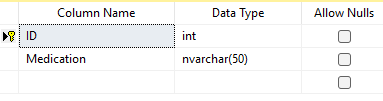
With the ID row selected, in the lower Column Properties section of the SQL Server Management Studio window, expand the Identity Specification option and click the (Is Identity) row. Change the default No to Yes by selecting it from the drop-down:
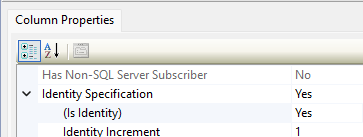
- Click the Save button in the SQL Server Management Studio Ribbon, and when the Choose Name dialog box appears, enter Medication, then click OK.
- Within the Object Explorer Pane, right-click on Tables and from the context menu, select Refresh. The new Medication table should now be listed beneath the Tables tree items:
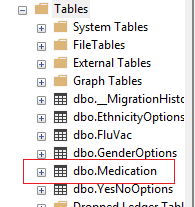
- With the new Medication table now created, right-click on it, and from the context menu, select Edit Top 200 Rows. Enter the medication names (and 'Other') shown below in the Medication column:
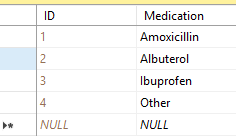
- To confirm that the medication names have been added to the table, within the Object Explorer Pane, right-click on the table name, and from the context menu, select Select Top 1000 Rows. The medication names (along with 'Other') will then be displayed, along with their unique IDs:
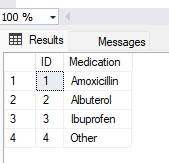
- Go back to your Project in Form Studio.
- Within the Project Explorer Pane, click the Datasources tab. Right-click within the tab, and from the context menu, select Import Datasource. When the SQL Database Connection dialog box appears, enter your credentials as you've done previously, then select the ChildFluVaccinationZZ database. Test your connection using the Test button, then click Save. For the table to map, select dbo.Medication, the press Save. The table will be imported, and will be listed as a Datasource within the Datasources tab, labelled as ChildFluVaccinationZZ2 (with a '2'suffix):
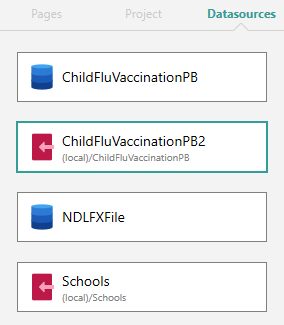
Click the ChildFluVaccinationZZ2 Datasource, then double-click the Medication Dataset to open it. Within the Properties Pane, make sure Loads With Form and Allow Read Access are both checked (ticked):
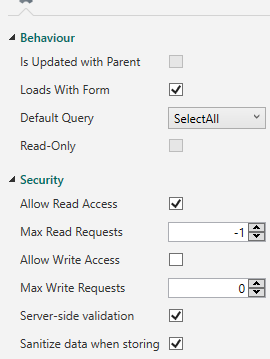
- Next, within the Project Explorer Pane, click the Pages tab, then click the Page 3 (Immunisation History) thumbnail to select the page.
- From within the Elements Gallery, drag and drop a Label Element, placing it beneath the Flu Vaccination Text Panel Element. With the Label Element selected, within the Properties Pane, change the Text property to Please select one of the following if your child is on any additional medication.
- From within the Elements Gallery, drag and drop a Check List Element, and place it beneath the Label Element you've just added. With the Check List Element selected, within the Properties Pane, change the Name property to medication, and change the Label property to Medication name: (include the colon). On the Data tab, click the List Items button. When the Property Builder popout appears, beneath the Map to an existing datasource heading, select the following:
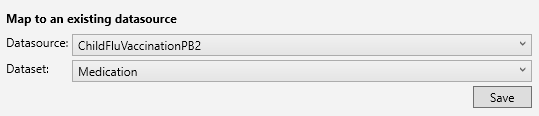
Click Save just beneath the Dataset property (not the Save button at the bottom of the Property Builder popout). When the Mappings tabs is displayed, select the following:
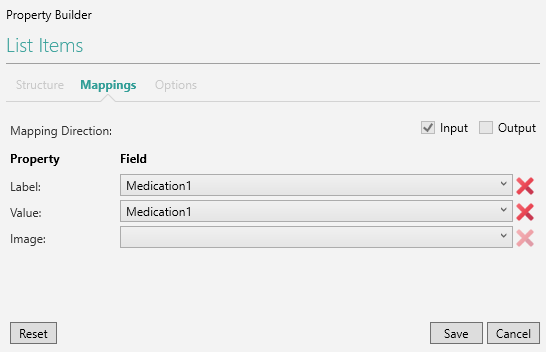
Note that Medication1 was used for both the Label and the Value because the Medication table that you created earlier only had ID and Medication Name columns (no 'Label' column, per se). Click Save to retain your changes.
- Next, drag and drop a Text Panel Element, and place it beneath the Check List Element. With the Element selected, change the Label property to Please state which other medication your child is taking: (include the colon). Within the Appearance tab, click the Expression Builder button () next to the Visible property (as you did in Exercise 3). When the Expression Builder popout appears, replace true with the code shown below. The code will ensure that the Text Box Element is displayed if the user selects 'Other' from the Check List. 'Other' can be selected on its own, or with one or more of the listed medication types - determined by the use of 'includes' within the code.
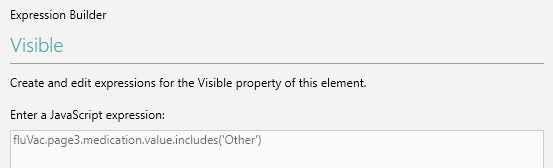
Click Save to retain your changes and to close the popout.
- Within the Project Explorer Pane, click the Pages tab. Right-click anywhere between the page thumbnails, and from within the context menu, select New Datasource from Form. This will update the FluVac Dataset to include the additional Check List and Text Panel fields.
- Staying within the Project Explorer Pane, click the Datasources tab. Click the ChildFluVaccinationZZ Datasource, then double-click the FluVac thumbnail to open the Dataset. As you did in Exercise 10, Step 6, within the Mappings tab's Mapped column, click the ndlcomplexname1_middlenameValue to deselect it (you won't need to remove any other rows):
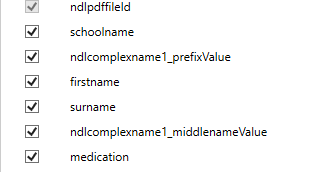
When the Middle Name has been removed, within the Project Explorer Pane, click the Pages tab. Click the Page 2 (Student Details) thumbnail to select the page, then click the Complex Name Element to select it. Within the Properties Pane, click the Data tab. Click the Mapping button (
) next to the Middle Name, and when the Mapping Builder popout appears, click the Reset button at the right-hand side of the Output row to clear the row's contents. With the contents cleared, click Save to close the popout. Within the Data tab, you should now only have mapping information visible in the lower of the two mapping rows for the Complex Name's Prefix, First Name, and Surname fields: - The Middle Name will be added back into the Mappings for the FluVac Dataset every time you select New Datasource from Form from this point forward. You will therefore need to repeat the above steps (i.e., remove the unwanted Complex Name's Middle Name etc.) after you've selected the option from here on in.
- Before you save and re-Publish your Form, you will need to update the PDF Template so that it includes the fields added in the previous steps.
- Update your Form's PDF Template, and then save and re-Publish your Project. When the Publishing process commences, you may once again receive a notification prompting you to upgrade the existing database. Agree to the upgrade, then click OK to dismiss the next dialog box, then the Form will continue Publishing. As discussed previously, an error may occur relating to the Arrows Navbar Element. The Element will need removing and adding back into the Form's Header section again, then the Form will need re-Publishing. See the Note at the end of Exercise 4.
Exercise 14 - Using JavaScript
The main objectives of this exercise are:
- To use JavaScript to obtain the current date.
- To display the date in the relevant Form Studio Element.
Useful JavaScript code snippets explaining how to obtain the current date can be found Online, including:
Exercise Steps
- Within the Project Explorer Pane, click the Pages tab. Click the Page 4 (Consent for Immunisation) thumbnail to select the page. Drag and drop a Separator Element from the Elements Gallery and place it beneath the Parent/Guardian Full Name and the Date fields.
- Drag and drop a Date Picker Element from the Elements Gallery, and place it beneath the Separator Element.
- Drag and drop a Text Box Element from the Elements Gallery, and place it beneath the Date Picker Element.
- Click the Date Picker Element to select it, then within the Properties Pane, change its Name property to page4datepicker, and change its Label property to Date Picker with JavaScript Date: (include the colon).
- Click the Text Box Element to select it, then within the Properties Pane, change its Name property to page4textbox, and change its Label property to Textbox with JavaScript Date: (include the colon).
- Within the Project Explorer Pane, on the Pages tab, click the Page 4 thumbnail to select the page and to access its properties within the Properties Pane. On the Events tab, click the On Show button:
When the Event Builder popout appears, from within the Select an action drop-down, select Custom JavaScript Function:
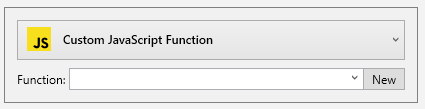
Click New next to the empty Function drop-down. The JavaScript Editing Pane will open, and will include a new empty function for the Page 4 OnShow Event:
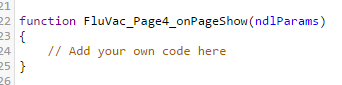
- Just beneath the // Add your own code here comment, add the following code:
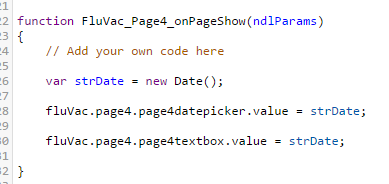
- Click out of the JavaScript Editing Pane and back on the Page 4 thumbnail within the Project Explorer Pane. This will save the code changes and will populate the Date Picker and Text Box Elements with the current date at Form runtime.
- Update the Form's PDF, then save and re-Publish, as you've done previously.
- Copy the Published Form's URL, and open the Form in a browser.
- The Date Picker Element and the Text Box Element should be visible on the Form's Page 4 (the Consent for Immunisation page) and the current date will be displayed within the Elements in the following formats:

Exercise 15 - Debugging Errors
The main objectives of this exercise are:
- To use the Edge Developer tools to debug JavaScript syntax errors.
- To use the Digitise Forms' Log table to identify database errors.
This exercise will take you through forcing a syntax error in your custom JavaScript function. It will also encourage you to use the browser Developer Tools to help debug the error, and to locate and then use the Log table associated with the Digitise Forms NDLFXDB Configuration database.
Exercise Steps
- Locate the Elements within your Form that have custom JavaScript assigned to them (i.e., the exercises that required you to enter code in the JavaScript Editing Pane - e.g., Exercise 5, Part A, and Exercise 14). Copy the existing code and paste it into Word or Notepad/Notepad++ so that you can restore it later. Edit the code to force a minor error.
- The error that you force should be something minor such as a typo - e.g., try using a reference of .page33 instead of .page3 - otherwise the Form won't Publish and you won't be able to use the DevTools discussed in Step 4.
- Do the same for one of the SQL statements within one of your Datasets (remember that the SQL statements can be found in the Queries Pane at the bottom of the Mappings tab when a Dataset has been opened from within the Project Explorer Datasources tab).
- Save, re-Publish, and run the Form.
- With the Form loaded in your browser, press F12 to open the DevTools to help debug the syntax error.
- Open SQL Server Management Studio, and in the left-hand Object Explorer Pane, expand the Databases tree item.
- Locate the NDLFXDB database, which should include a suffix such as ##FX04, meaning the full database name should be NDLFXDB##FX04, or similar:
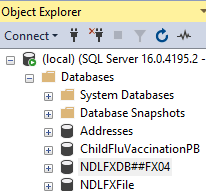
Expand the NDLFXDB database, then expand the Tables tree item.
- Right-click on the dbo.Log table, then from the context menu, select Select Top 1000 Rows to view the logging information. To order the table so that the latest entries are at the top of the listing (rather than having to scroll down the list to find the latest ones), within the upper Query section of the screen, edit the SQL and add ORDER BY LogId DESC at the bottom:
In the lower half of the screen, the latest records will now be at the top of the log's list of entries (shown below with a time-of-writing date of June 2025):
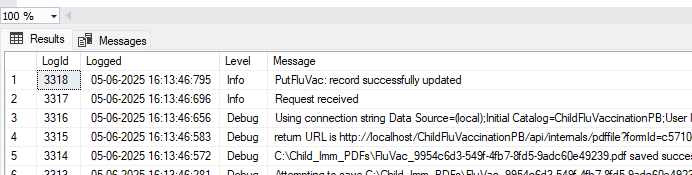
Exercise 16 - Familiarisation with Form Manager
For this final exercise, we ask that you read through the Form Manager topics contained within this Online Help so that you can:
- Gain a general understanding of what Form Manager is and how it can be used.
- Familiarise yourself with how Digitise Forms components can be controlled and configured from within Form Manager.
To access the main Form Manager topic, click here. The topic discusses the various parts of the Form Manager window, and explains how Form Manager lets you:
- View a list of Forms within a published web app and view or change the Form settings for the folders used to store PDF copies of completed Forms and to turn Client logging on and off.
- Change connection strings for Datasources used by your Forms, e.g., to switch between test and production databases.
- Securely store sensitive details required for use with the access PaySuite payment Elements.
- Change the Digitise Forms Configuration Database connection string, e.g., to use a different instance of SQL Server.
- Configure the security settings.
- Configure the debug and audit logging for the Forms Server components of your Forms, email logs, and delete logged messages.
When you have read through the main Form Manager topic, you should then read through the remainder of the topics contained within the Form Manager section of this Online Help. To access the topics, click on the links provided below:
- Add Digitise Forms Configuration Database Details (Servers)
- Select a Web App
- Configure Form Settings
- Edit Database Connection Strings (Datasources)
- Store access PaySuite Payment Credentials (Secure Values)
- Configuration Settings
- Configure Digitise Forms Server Logging Settings (Logging)
- Configure Log Email Settings (Manager Settings)
Summary
This Introduction to NDL Digitise Forms Workshop has taken you through the steps that you would typically need to follow when setting up an eForm within your own environment. It has discussed how to create, save, and Publish a Form, and has explained how to get the most out of commonly used Form Studio Elements.
It has also explained:
- How to correctly use Datasources.
- How to map Form Elements to data held in database tables.
- How to create PDF copies of your Forms.
- How to navigate between a Form's pages.
- How to incorporate images and apply styling in order to enhance a Form's appearance.
- How to carry out data validation and de-bugging.
- How to access and use Form Manager.
In addition to acquiring the above knowledge, by working your way through the training exercises, you will hopefully have also realised the benefits of using Digitise Forms to accurately and reliably display and capture information for a variety of different purposes.
As discussed in this Online Help's main Training topic, we welcome any feedback that you care to provide regarding how our Online Learning offering can be improved.
See also: