 What's New
 Elements re-worked to conform to Accessibility Standards
A number of Form Studio Elements have been re-designed to make them more inclusive, and to ensure that they conform to the W3C Web Contents Accessibility Guidelines (WCAG) 2.2 standard. Some Digitise Forms Elements were re-worked to conform to the WCAG 2.1 standard in Digitise Forms version 3.0, but have since been modified further to take into account the requirements of the 2.2 standard.
A dedicated Accessibility topic has also been created which includes a link to the W3C website, and which summarises the changes that have been made.
Capita Pay360 group of Elements re-branded to 'access PaySuite'
For Forms v3.1, the Capita Pay360 group of Elements have been re-branded, and are now officially known as the access PaySuite group of Elements. Within the Form Studio Elements Gallery, the heading above these Elements has been updated to coincide with the recent change:
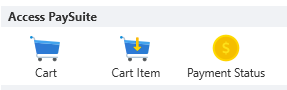
Throughout this Online Help, all references to Capita Pay360 have been removed in favour of access PaySuite (with a lower case 'a' to match the official branding). For the name of the group of Elements, this has an upper-case 'A' within the Digitise Forms module (where it appears in isolation) as illustrated above.
New address validation provider added, for use with the 'Address Finder' Element
For this latest release of Digitise Forms, the address validation provider that was previously available for use with the Address Finder Element (getaddress.io) has been replaced by the Ideal Postcodes provider (https://ideal-postcodes.co.uk/). This change is reflected in the description of the Address Finder Element, where all references to getaddress.io have now been removed. There is no change to how the Address Finder Element works, and users will still need to provide an API Key in order to access the address validation facility provided by Ideal Postcodes.
New Elements added to the Form Studio Elements Gallery
For the 3.0 release of Digitise Forms, a number of new Elements have been added to the Form Studio Elements Gallery, further extending Form Studio's functionality. Click on each of the following links to find out about each new Element.
- Date Range Picker
- Faces Rating
- IFrame
- Link Repeater
- Multiselect
- QR Code
- Star Rating
- Switch
- Video
- Meal Gauge
- Stool Chart
- Urine Chart
- Entra ID Logout Button
Existing Elements enhanced to provide greater functionality
As well as the addition of the new Elements discussed above, for version 3.0, the Date Picker and the File Upload Elements have been updated, with the changes aimed at improving and expanding the functionality of them both. For the Date Picker Element, days of the week as well as weekends can now be included or excluded from the Day/Date selection. You can also change the Start View of the displayed calendar, show or hide the Today button, and choose whether to display the calendar in Full Screen mode on mobile devices. For the File Upload Element, this has been enhanced to provide better input mapping, to upgrade its styling, and to provide a more efficient upload and re-upload experience.
New tab icons added for Element properties
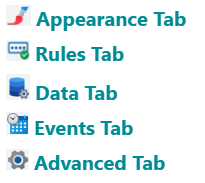
To coincide with both the changes to existing Elements and the addition of new Elements, the 3.0 release of Digitise Forms sees the introduction of new Properties Pane tab icons for all form Elements. The icons shown below will be visible within the Properties Pane whenever an Element is added to the form and has been selected.
- For some Elements, not all tabs will be displayed, and the ones that are visible will depend on the number and type of configurable properties the selected Element possesses.
New Training Workshop topic added to the main Training Menu
Following the recent transition away from tutor-led Product Training towards independent (Online) learning, a brand-new Introduction to NDL Digitise Forms Workshop topic has been added beneath the main Training top menu item. The Workshop incorporates the bulk of the information that was originally provided within a specially-created Digitise Forms Foundation Training Form, but includes additional content aimed at simplifying the Digitise Forms Training process.
The Workshop discusses, in detail, how to set up an eForm, and includes a number of step-by-step exercises - each of which explains how to configure different Form Studio components. The exercises also include context-specific screen shots showing which options to select and which properties to set, with the aim of alleviating confusion and eliminating grey areas.
Now, anyone wishing to gain a thorough understanding of the basics of Digitise Forms can work their way through the exercises at their own pace, developing a fully functional Child Flu Vaccination Form as they go along. The Form contains many of the Elements that would typically be found in a live Form, and provides an invaluable insight into how a Form can be created using the wealth of tools and features available within Form Studio.
New Install topics added
The 3.0 version of Digitise Forms includes new Install content - created to help guide you through the Digitise Forms installation process. The content replaces the Install PDF that was available in earlier versions, and which you could access by clicking on the Install top menu item. Now, when you click on the same menu item, you will find links to the Install topics listed below, which cover everything from the minimum requirements through to software security. By following the instructions contained within the topics, you will be able to set up your NDL Digitise Forms software so that eForms can be created and successfully deployed.
- System Requirements
- Security Best Practice
- Third-Party Requirements
- Digitise Forms Installation
- Install Appendix A
- Install Appendix B
- Install Appendix C
Enhanced Form security
To add an extra layer of security to your Forms, a new Microsoft Entra ID Login option has been included within the Form Studio Publish screen. The option makes use of Microsoft's cloud-based Entra ID functionality, giving you greater control over who can and can't access a Project's Forms once those Forms have been Published. For more information, see the Microsoft Entra ID Login section of the Publish your Form topic.
New Pre-Submit option added to the Submit Button Element
For version 3.0, a new 'Pre-Submit' property has been added to the Submit Button Element. The property can be found on the Events tab within the Properties Pane when the Element has been added to a Form and has been selected. Configuring the Pre-Submit allows an action to be performed prior to the Form being submitted using:
- Database Operations
- Library Functions
- Custom JavaScript
An example of performing a Pre-Submit action would be storing the date and time that the Form was submitted, or updating a field within one of the Form's Datasources. For more information, see the Events tab section of the Submit Button Element topic.
New 'Set timeout message' Library Function added
A new 'Set Timeout message()' Function has been added to the list of available Library Functions, enabling you to replace the default timeout message (configured for a Form within the Properties Pane) with a new one. If you link the Function to an Event such as the clicking of a button or the loading of a Form or one of its pages, when the Event occurs, the new message will replace the original message the next time the Form times out.
To coincide with the creation of the new Set Timeout message Function, additional On Load and On Timeout Events have been added to the Form's properties. Within the Properties Pane, a new Security section has also been incorporated, where you can define the default timeout message, and where you can determine the Form's behaviour once it has timed out.
For more information, see the Set Timeout Message() Function description and the Security section of the Form Properties topic.